Convert SVG to WebP
Convert SVG to WebP in your browser. Choose dimensions, quality and a transparent or solid background, then preview and download.

With the lock on, changing one dimension calculates the other. Turn it off only when you deliberately want different proportions.
- Works in your browser
- No image uploads
- No account needed
(728 × 90)
Tools
More image tools
Compress images
Compress image files in your browser
OpenCompress to a File Size
Reduce images to a chosen file size
OpenImage Resizer
Resize images to exact dimensions
OpenCrop Image
Crop images to the perfect frame
OpenProduct Image Optimizer
Prepare consistently sized product images
OpenConvert formats
HEIC, JPG, PNG, WebP, AVIF and SVG.
OpenAdd Watermark
Add text or a logo to your image
OpenRemove Image Metadata
Remove EXIF, camera and location metadata
OpenConvert image formats
Choose an output format
More editing tools8
Rotate and Flip Image
Rotate 90° or flip your image
OpenCombine Images
Combine images in a row or grid
OpenRounded Image Corners
Round corners and choose a background
OpenPixelate Image
Pixelate or cover a selected area
OpenAdd a background to a transparent image
Add a solid background before JPG export
OpenSocial Media Sizes
Resize images for social-media platforms
OpenImage Metadata Viewer
Check EXIF, GPS and camera details
OpenFavicon generator
Create ICO and PNG icons for your website
OpenGuides
Learn before you export
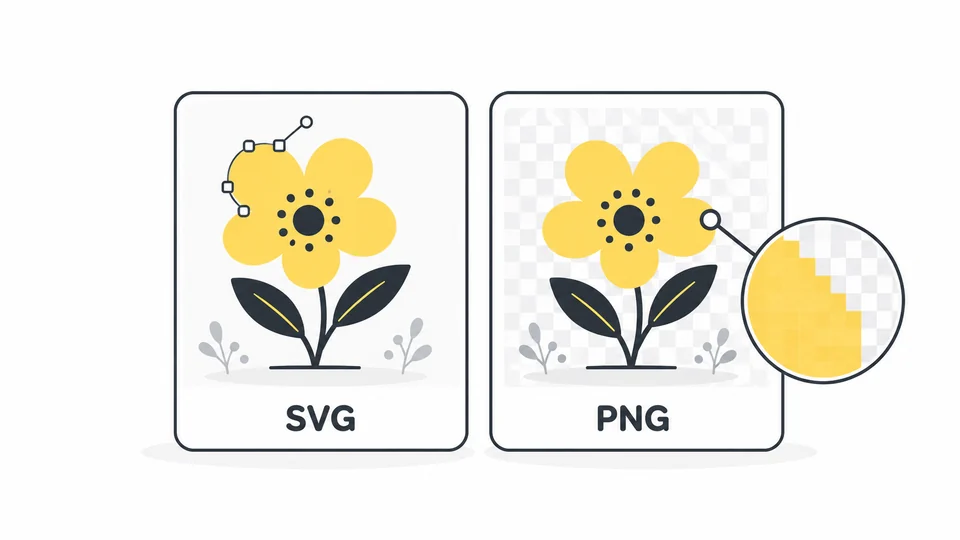
What Is SVG? When to Use SVG vs PNG
Understand SVG files, compare SVG with PNG, and choose the right format for logos, icons and website graphics.
Read guide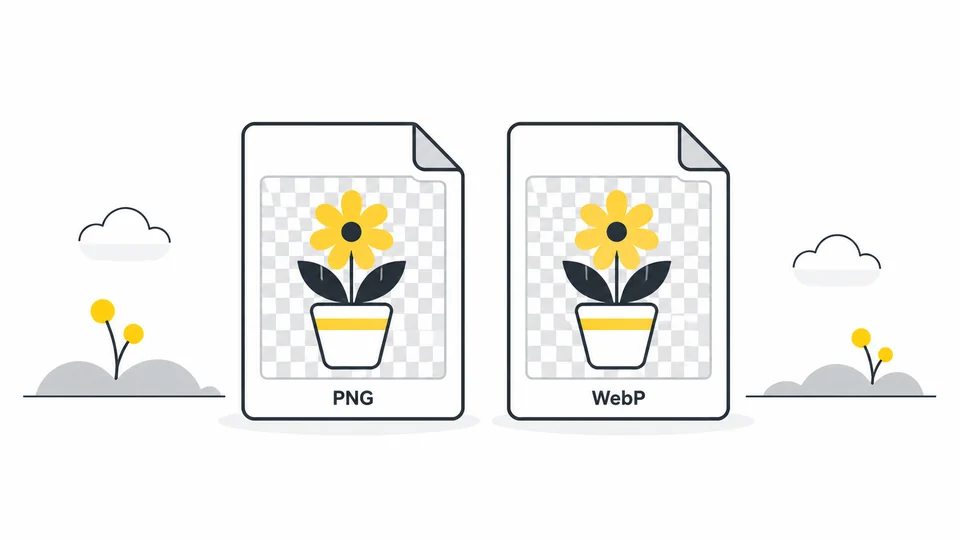
PNG vs WebP: Which Format Fits Your Image?
Compare PNG and WebP for screenshots, transparent graphics and photographs.
Read guide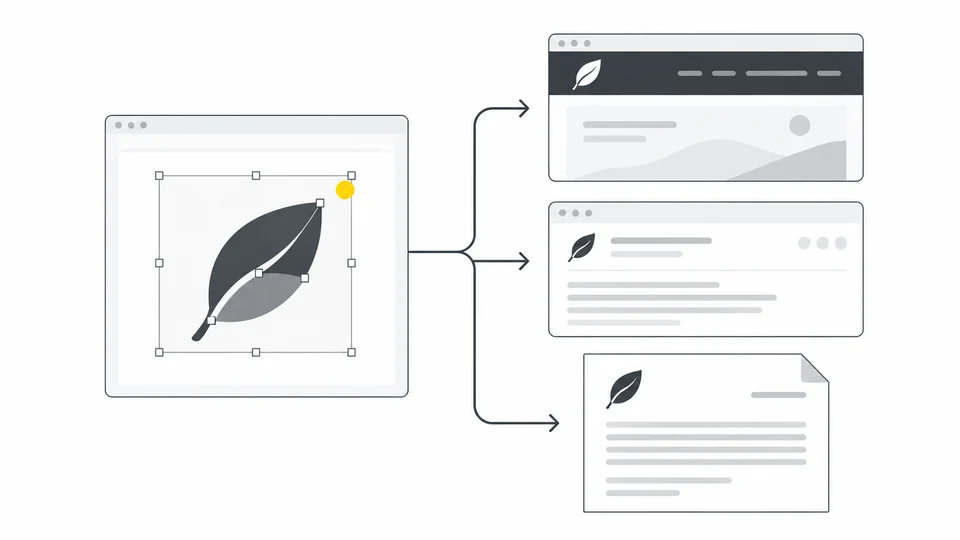
How to Export a Logo for Websites, Email and Documents
Prepare the right SVG, PNG and JPG logo files.
Read guideFrequently asked questions
Answers to common questions about this tool, image formats, and privacy.
When should I convert SVG to WebP?
Use WebP when a website or publishing system needs a pixel image and accepts WebP. Set the actual display dimensions, then compare the output size and detail. WebP can keep transparent areas. If the destination supports SVG, keeping a vector logo or icon as SVG may be more suitable than exporting a fixed-size copy.
What WebP size should I choose?
Start with the dimensions required by the app or platform. For a website logo displayed at 300 pixels wide, a 600-pixel-wide WebP can look sharper on a screen with twice the pixel density, provided the website still displays it at 300 pixels wide. Keep the aspect ratio locked so the height adjusts automatically. Avoid exporting much larger than you need, as this can increase the file size.
Can I keep the background transparent in WebP?
Yes. Leave Transparent background selected to retain areas that are already transparent in the SVG. This does not remove a white rectangle or another background shape inside the artwork. Turn the option off to choose a solid background. Inspect soft shadows and edges on both light and dark backgrounds.
Is this WebP export lossless?
No. This converter uses lossy WebP encoding, including at quality 100. Transparency can be retained while colours and edges change. Start at quality 85 and inspect lettering, thin lines and shadows. Convert again after adjusting quality. Use PNG or the original SVG when preserving exact detail is more important than reducing file size.
Will converting SVG to WebP always make it smaller?
No. Simple SVG artwork can already be very compact. The WebP size depends on the chosen pixel dimensions, quality and drawing. Compare the actual downloaded files and keep the version that suits the destination. A smaller file is useful only if text and edges remain clear.
Why does my WebP look blurry?
A WebP has a fixed number of pixels and can look blurry when displayed larger than its exported size. Export again from the original SVG at the dimensions you need instead of enlarging the WebP. Vector shapes can be rendered at a larger size, but enlarging photos or other pixel images embedded in the SVG does not restore missing detail. Check small text and thin lines at the size the image will actually be used.
Can I convert several SVG files at once?
This tool processes one SVG at a time, up to 25 MB. Choose another image to process the next file. Each download is a separate copy; your original file is unchanged.
Which dimensions can I use?
The initial size comes from the SVG’s width and height or viewBox. Both the source dimensions and WebP output are limited to 8,000 pixels per side and 32 million pixels in total.
Will every SVG look exactly the same?
Use a self-contained SVG. External images, stylesheets and embedded HTML are not supported. Animations are exported as a static image and scripts do not run. Fonts can look different between devices; convert text to outlines in your design app when exact lettering matters.
What should I do if my SVG will not convert?
Check the error message first. The file must be a valid SVG up to 25 MB, with width and height or a viewBox that defines its size. If it uses linked images or stylesheets, export it again from your design app with those resources included in the file. Embedded HTML is not supported. If the dimensions are too large, reduce the SVG’s export dimensions before uploading, or reduce the WebP dimensions if the error appears when processing. Renaming another file to .svg does not convert it into an SVG.
Are my images uploaded?
No. Processing happens locally in your browser.