Rotate and Flip Image
Rotate in 90° steps or flip your image horizontally or vertically. Check the preview and choose PNG, JPG or WebP before downloading.
JPG fills transparent areas with this color.
- Works in your browser
- No image uploads
- No account needed
(728 × 90)
Tools
More image tools
Compress images
Compress image files in your browser
OpenCompress to a File Size
Reduce images to a chosen file size
OpenImage Resizer
Resize images to exact dimensions
OpenCrop Image
Crop images to the perfect frame
OpenProduct Image Optimizer
Prepare consistently sized product images
OpenConvert formats
HEIC, JPG, PNG, WebP, AVIF and SVG.
OpenAdd Watermark
Add text or a logo to your image
OpenRemove Image Metadata
Remove EXIF, camera and location metadata
OpenConvert image formats
Choose an output format
More editing tools7
Combine Images
Combine images in a row or grid
OpenRounded Image Corners
Round corners and choose a background
OpenPixelate Image
Pixelate or cover a selected area
OpenAdd a background to a transparent image
Add a solid background before JPG export
OpenSocial Media Sizes
Resize images for social-media platforms
OpenImage Metadata Viewer
Check EXIF, GPS and camera details
OpenFavicon generator
Create ICO and PNG icons for your website
OpenGuides
Learn before you export
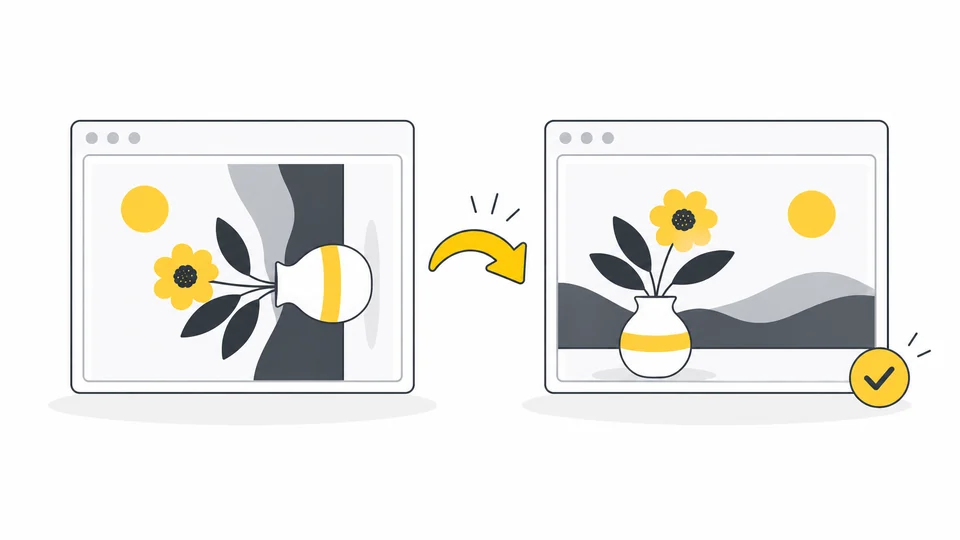
Why Is My Photo Sideways After Uploading? Fix Image Rotation
Fix a photo that turns sideways after uploading.
Read guide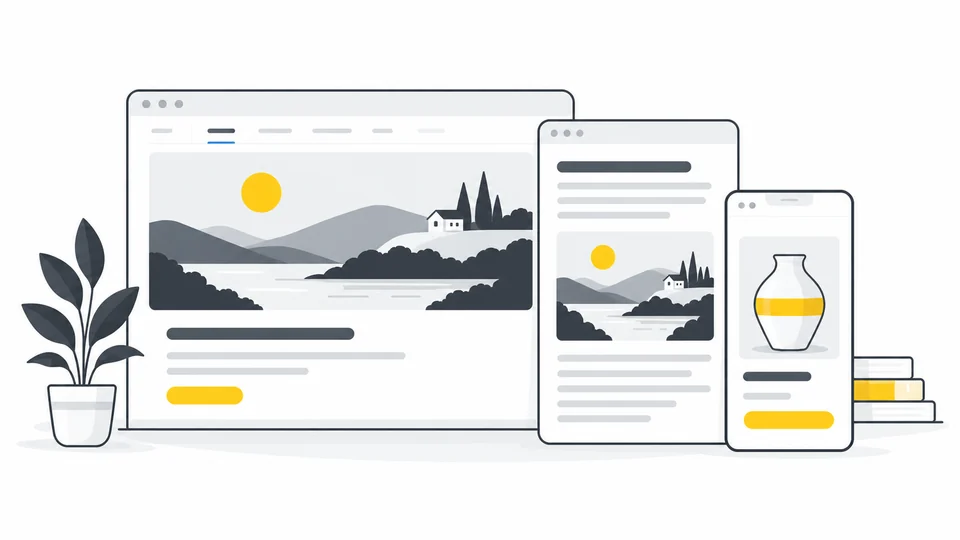
Best Image Sizes for Websites
Choose image dimensions from your layout, screen density and crop.
Read guide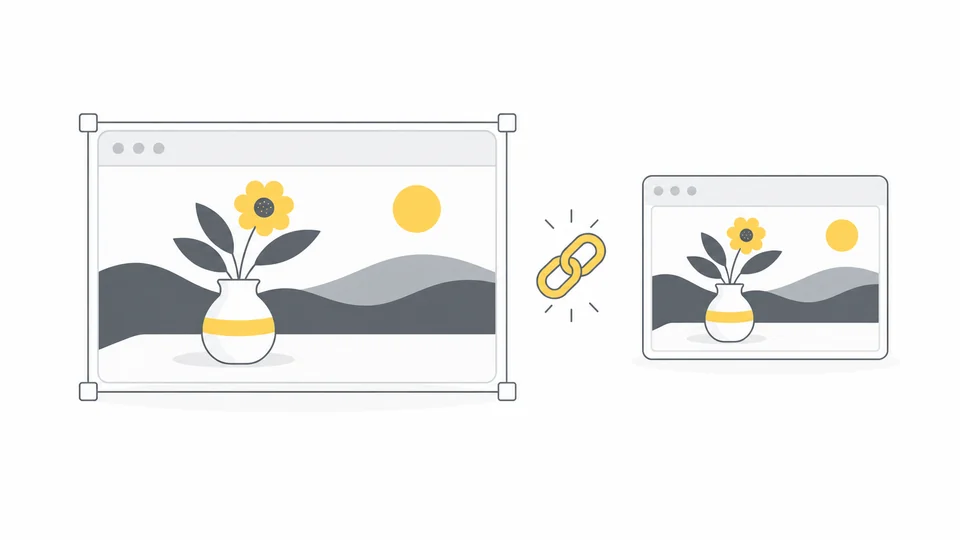
How to Resize an Image Without Stretching It
Resize an image without stretching: lock the aspect ratio, change one dimension and choose cropping or borders when you need a different shape.
Read guideFrequently asked questions
Answers to common questions about this tool, image formats, and privacy.
Which files and dimensions are supported?
Use JPG, PNG or WebP files up to 25 MB each. Input images and the final result are limited to 8,000 pixels per side and 32 million pixels in total. The downloaded result is a PNG copy; your originals are unchanged.
Can I rotate by 180° or choose any angle?
Each button turns the image 90° left or right. Click twice for 180° or three times for 270°. Custom angles are not supported.
What is the difference between rotation and flipping?
Rotation turns the whole image. A horizontal flip swaps left and right; a vertical flip swaps top and bottom. Flips apply to the image as shown after rotation. Text in a flipped image is mirrored too.
Will rotation crop, stretch or resize my image?
No. The whole image is kept without resizing or stretching. A 90° or 270° turn swaps width and height; a 180° turn keeps them unchanged. The preview shows the orientation saved in the downloaded PNG.
How do I undo the changes?
Select Reset orientation to remove both rotation and flips. Choosing another image also resets the orientation. Your original file is never overwritten.
Why is the download a PNG?
PNG preserves transparency and avoids another round of lossy compression. It can be larger than the original JPG and cannot restore detail already lost. Keep the original and inspect the downloaded copy before using it.
Will my original image be changed?
No. The tool edits a copy in your browser. Download the result as a new file and keep your original.
Are my images uploaded?
No. Processing happens locally in your browser.