Image formats
What Is SVG? When to Use SVG vs PNG
Understand SVG files, compare SVG with PNG, and choose the right format for logos, icons and website graphics. Learn how sizing and export settings affect the result.
What is an SVG file?
SVG stands for Scalable Vector Graphics. Instead of storing only a grid of colored pixels, it can describe shapes, paths, fills and text. A browser or drawing app uses those instructions to draw the image at the requested size. You do not need to write code to create one: a vector design app can export an SVG.
Think of a circular logo. An SVG can describe the circle and its color; a PNG stores the pixels that make up the circle at one particular size. The SVG can draw a larger circle with a smooth edge. Enlarging the PNG spreads its existing pixels over more space and can soften the edge. MDN’s SVG overview explains how the format works.
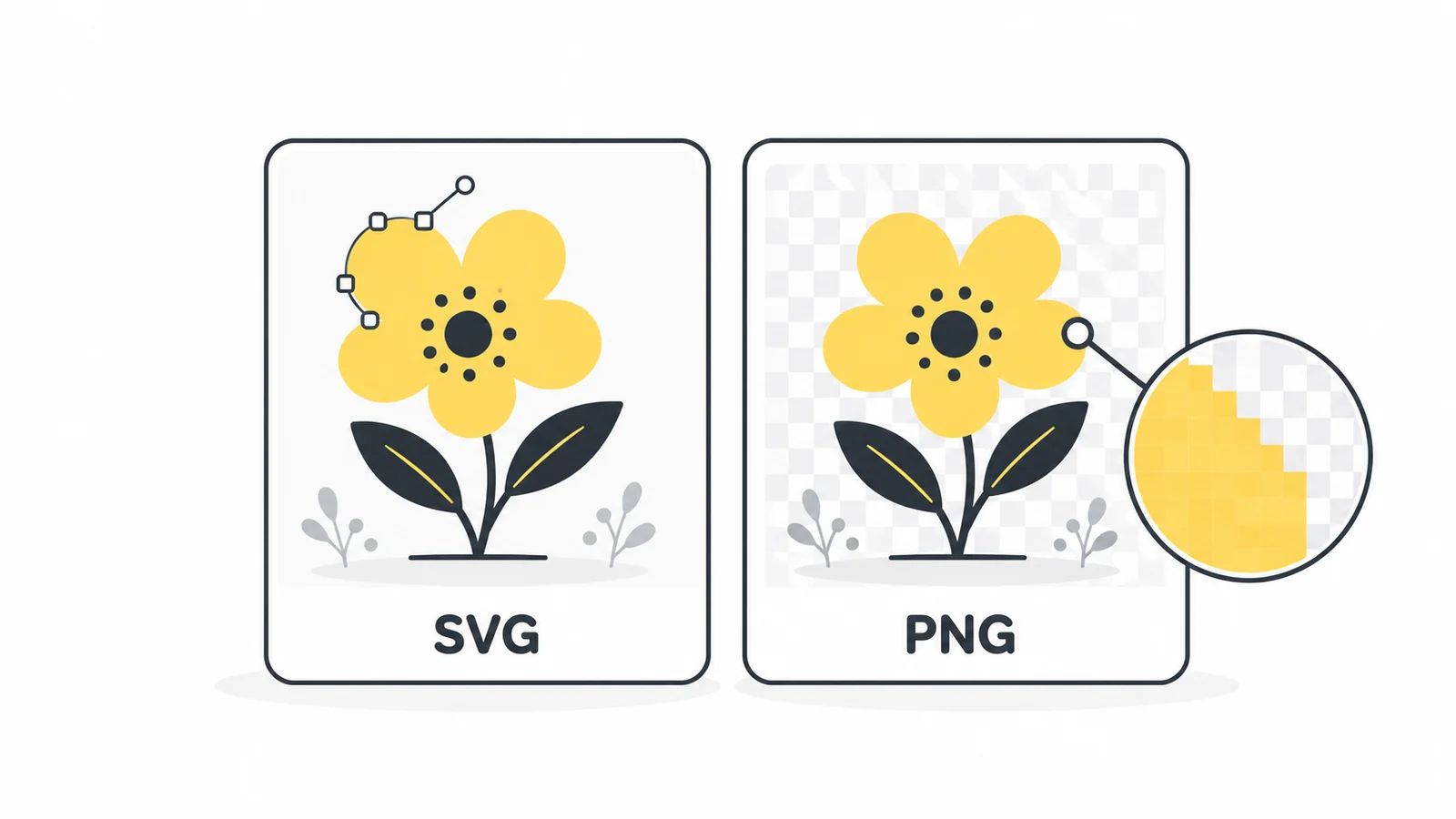
SVG vs PNG: the practical differences
| Consideration | SVG | PNG |
|---|---|---|
| Resizing | Vector shapes stay sharp at different sizes. | Pixel dimensions are fixed; export the size you need. |
| Typical use | Logos, icons, simple illustrations and diagrams. | Screenshots, pixel artwork and graphics for uploads that require PNG. |
| Transparency | Supports transparent areas. | Supports transparent areas. |
| Editing | Shapes and text can remain editable, depending on the export. | Stores the rendered pixels, not the original vector shapes. |
| File size | Can be compact for simple artwork; complex paths and embedded images can make it large. | Depends on the pixel dimensions and image content. |
Neither format is always smaller. A detailed SVG with thousands of paths may be larger than a suitable PNG. Compare the actual files and check whether the destination accepts them. For photographs, consider JPG, WebP or AVIF rather than treating SVG as a photo-compression format.
When SVG is a good choice
A logo used in a website header, a presentation and a large banner benefits from a vector original. SVG also suits icons and simple diagrams that need to work at several sizes. Still inspect the smallest version: sharp rendering does not make tiny lettering readable or prevent thin lines from becoming hard to see.
An SVG can include an ordinary pixel image such as a PNG or JPG. That image still has its original resolution. Putting a small photograph inside an SVG does not restore detail or turn it into vector shapes. Renaming a .png file to .svg does not change its format either.
Understand size, viewBox and empty space
The width and height describe the image’s dimensions. The viewBox defines the coordinate area used to position the artwork. It helps the drawing scale into the space where it is displayed; it is not a file-size setting. The MDN viewBox reference describes this relationship.
If your logo appears small inside a large empty area, check the artboard or page bounds in your design app. Exporting the whole page can include unused space around the drawing. Fit the page to the artwork when appropriate, while leaving room for strokes and shadows. Simply increasing the displayed width also enlarges that empty space.
Use SVG on a website
For a normal website logo, an SVG can be used as an image file. Give meaningful images descriptive alt text and reserve the correct width and height in the layout. Decorative images should have empty alt text. See the alt-text guide for examples.
A browser’s ability to display SVG does not mean every CMS or upload form accepts it. Check your platform’s rules before choosing the final export. SVG used as an image also behaves differently from SVG embedded directly in the page: scripts and external resource loading are restricted in image contexts. The MDN SVG-as-image guide explains these restrictions. Use trusted artwork and your platform’s supported publishing method.
Prepare an SVG that travels well
- Export the intended artwork area, not an unnecessarily large page.
- Include linked images and required styles in the file instead of relying on separate files.
- If lettering must look identical on another device, convert text to outlines in your design app. Keep an editable original: outlined text is no longer ordinary editable text.
- Remove unused objects and unnecessary editor data on a copy. Check the result before replacing the original.
- Open the exported SVG in its intended app or website and inspect the edges, text, background and missing elements.
Converting text to outlines can increase the number of paths and the file size. Simplifying paths too much can change the drawing. Treat optimization as a comparison of the real result, not a reason to remove data blindly. Pixilo’s SVG-to-PNG tool creates a pixel image; it does not optimize or return a smaller SVG.
When to make a PNG copy
Make a PNG when the receiving service requires it, when you need a static copy, or when you need specific pixel dimensions. Export from the original SVG at the required size. PNG does not retain the vector paths or interactive behavior, and enlarging it later can make it blurry. Keep the SVG for future exports.
Use SVG to PNG to choose the pixel dimensions and preserve transparent areas or add a solid background. The tool page explains size limits, fonts and unsupported content. Its transparent-background option preserves existing transparency; it does not remove a background shape drawn into the SVG.
Before you publish or send the image
- Confirm which formats the destination accepts.
- Keep SVG when its vector shapes and flexible sizing help; create PNG when the destination needs pixels.
- Check the artwork bounds, fonts and any embedded images.
- View the final file at its actual intended display size, on the background where it will be used.
- Compare file sizes if loading speed matters, and keep your editable original.
Need a PNG version of your SVG?
Create a copy at the dimensions your app or platform requires.
Convert SVG to PNGCompare other image formats → ChatGPT
 Grok
 Google
 Perplexity
 Claude