Pixelate Image
Pixelate or cover one or more areas. Check the preview and choose PNG, JPG or WebP before downloading.
Select the area to hide, then choose pixelation or a solid colour.
How to use
Use Add area for another selection. Drag inside the selected area to move it, or drag its edges and corners to resize. Drag outside to redraw the selected area. You can also use coordinates or arrow keys.
Exact selection
JPG fills transparent areas with this color.
- Works in your browser
- No image uploads
- No account needed
(728 × 90)
Tools
More image tools
Compress images
Compress image files in your browser
OpenCompress to a File Size
Reduce images to a chosen file size
OpenImage Resizer
Resize images to exact dimensions
OpenCrop Image
Crop images to the perfect frame
OpenProduct Image Optimizer
Prepare consistently sized product images
OpenConvert formats
HEIC, JPG, PNG, WebP, AVIF and SVG.
OpenAdd Watermark
Add text or a logo to your image
OpenRemove Image Metadata
Remove EXIF, camera and location metadata
OpenConvert image formats
Choose an output format
More editing tools7
Rotate and Flip Image
Rotate 90° or flip your image
OpenCombine Images
Combine images in a row or grid
OpenRounded Image Corners
Round corners and choose a background
OpenAdd a background to a transparent image
Add a solid background before JPG export
OpenSocial Media Sizes
Resize images for social-media platforms
OpenImage Metadata Viewer
Check EXIF, GPS and camera details
OpenFavicon generator
Create ICO and PNG icons for your website
OpenGuides
Learn before you export
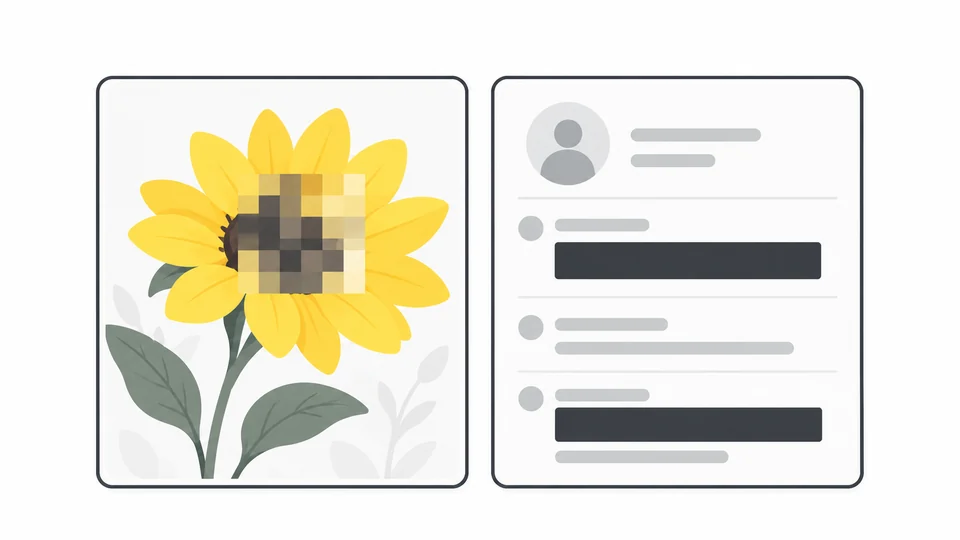
How to Pixelate or Cover Parts of an Image
Learn how to pixelate or cover parts of an image, edit multiple areas and check the saved PNG.
Read guide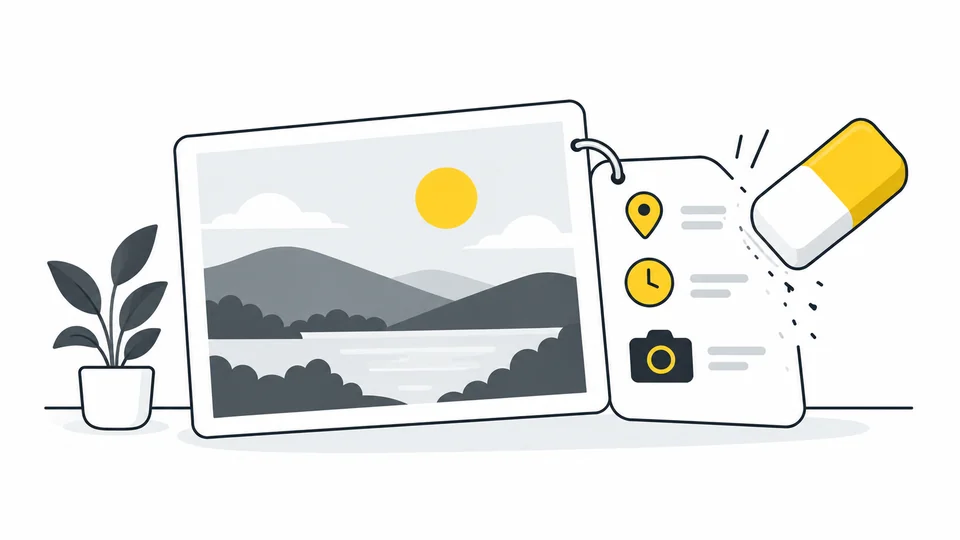
What Your Photos Reveal: How to Check and Remove Metadata
Check photos for location and other embedded information, create a sharing copy and verify the result.
Read guide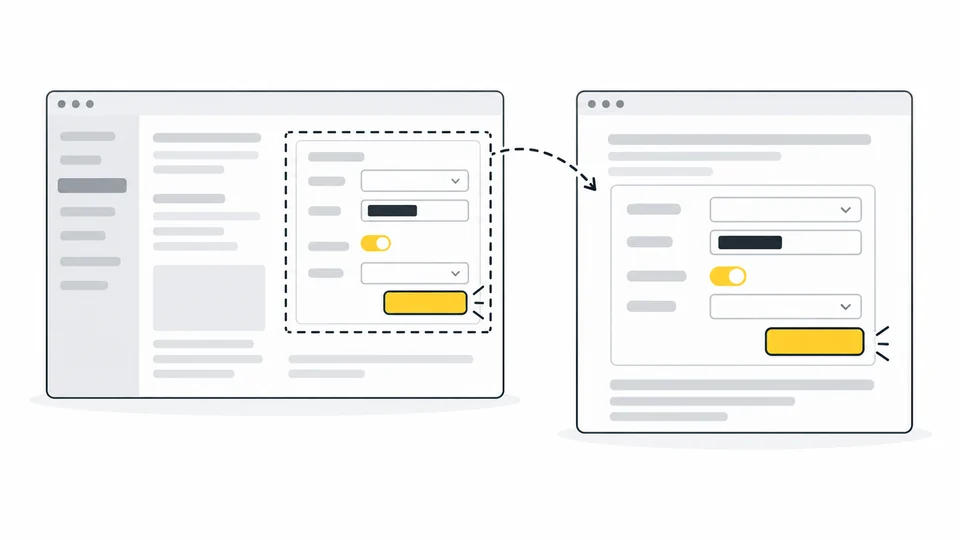
How to Prepare Screenshots for Tutorials and Documentation
Create clear tutorial screenshots: capture readable text, crop distractions, cover private details and choose image dimensions and formats for publication.
Read guideFrequently asked questions
Answers to common questions about this tool, image formats, and privacy.
Which image formats and sizes can I use?
Choose one JPG, PNG or WebP up to 25 MB. Images must be no more than 8000 pixels per side and 32 million pixels in total. The default output is PNG. You can also choose JPG or WebP.
How do I select, move or resize the area?
Use Add area for another selection. Drag inside the selected area to move it, or drag its edges and corners to resize. Drag outside to redraw the selected area. You can also use coordinates or arrow keys.
Can I pixelate several areas at once?
Yes. Use Add area for each additional rectangle, then select an area to move, resize or remove it. All areas are applied to the saved PNG. Effect settings apply to every area.
Does pixelation affect the whole image?
No. Only the areas you select are pixelated or covered. The rest of the visible image and its dimensions are preserved. Selection borders and handles are not saved.
Is pixelation enough to hide sensitive information?
Not always. Faces or text may remain recognizable. Choose solid cover to replace the selected area completely and check the saved image.
Will my original image be changed?
No. The tool edits a copy in your browser. Download the result as a new file and keep your original.
Are my images uploaded?
No. Processing happens locally in your browser.