Image sharing
How to Send High-Quality Photos on WhatsApp: HD vs Documents
Choose HD for chat photos or Document to share the image file. Follow Android, iPhone and computer steps, check the download and avoid unnecessary compression.
If a photo arrives blurry, first check which file was sent and how it was attached. A photo message is convenient to view in the conversation. A document attachment is the route to choose when someone needs the image file itself.
This guide covers still images in individual and group chats on Android, iPhone and computers. It compares WhatsApp's documented sharing options, not measured compression results. To prepare a photo now, use the interactive sending checklist.
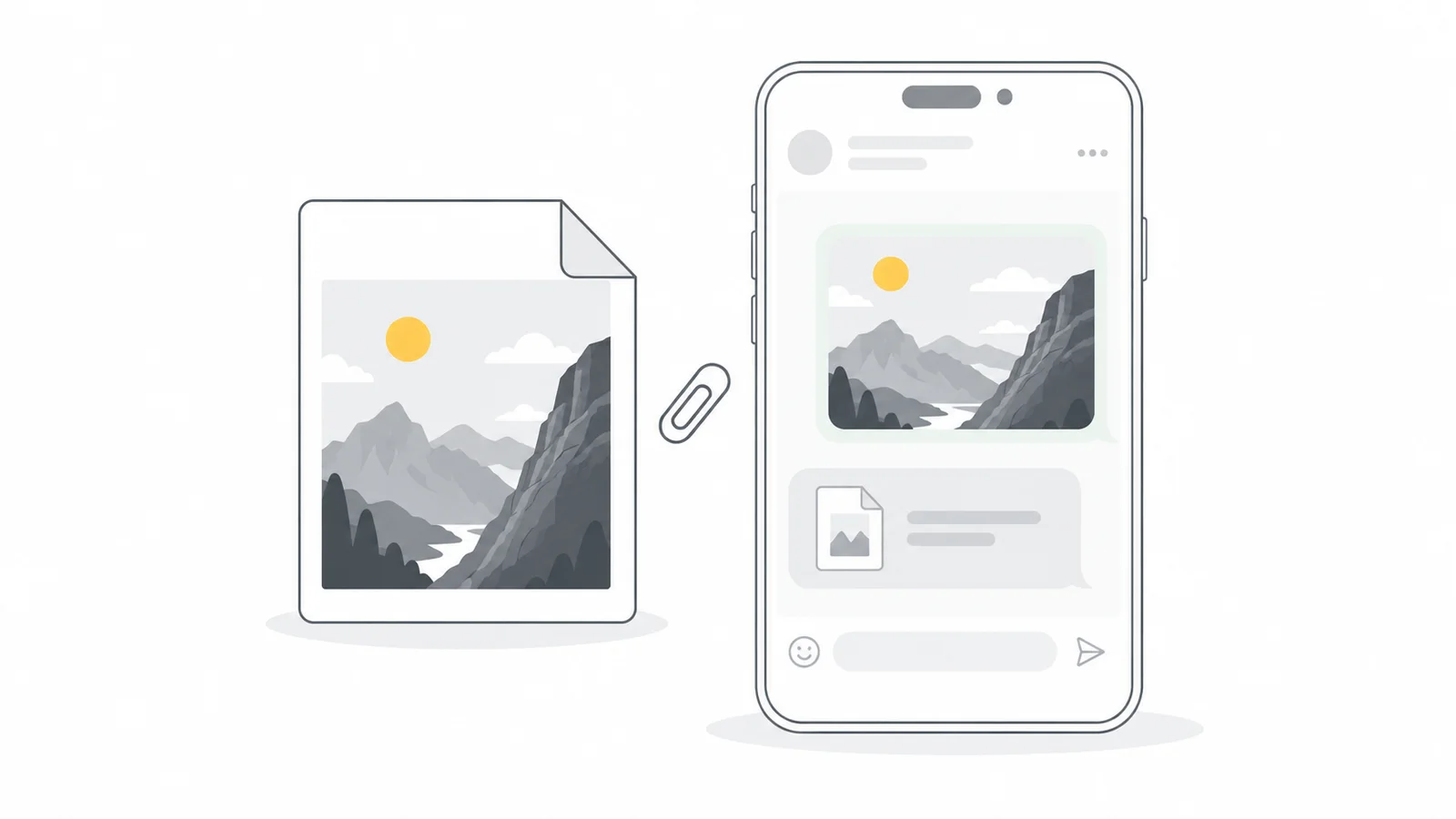
Choose the method by what the recipient needs
| Method | Useful for | What to check |
|---|---|---|
| Standard quality | A quick reference or casual chat photo | Check whether small writing and fine detail remain readable. |
| HD quality | A clearer photo message that is easy to view in the chat | Uses more data than Standard. The HD label does not mean the file is identical to your source. |
| Document | Sending an image file for editing, printing or publishing | Select the intended file and have the recipient save and open the attachment. |
For example, an HD preview may be enough for a client choosing a product angle. The person building the product page needs the working image file, not a screenshot of that preview. Agree on the purpose before sending the whole collection.
Keep original file separate from uncompressed image. A camera JPG is already compressed. Sending that JPG as a document is about handing over the file you selected, not undoing its earlier compression.
Send a photo in HD for chat viewing
WhatsApp offers Standard and HD photo quality. Its HD media instructions describe the quality selector and default setting.
HD is useful when faces, product details or small writing look soft in a Standard photo message. WhatsApp explains that HD uses more data and takes longer to send. It is a photo-message quality setting, not a guarantee of an unchanged file.
- Open the chat and select a photo through the photo or gallery attachment option.
- In the preview, open HD and choose HD quality.
- Check the photo and recipient, then send it.
To make HD your default, open Settings → Storage and data → Media upload quality → HD quality. Check the quality choice when a particular photo matters; the setting does not make an already damaged source sharper.
On WhatsApp Web, the photo preview also offers an HD selector when available. App versions and menus can differ. WhatsApp says HD media is not available for Status updates or profile pictures.
If the selector is missing, check the sending route and app version. Do not enlarge a small photo just to try to make an HD option appear.
Send the image file as a Document
Document is an attachment choice, not a request to convert your photo to PDF or Word. Keep the image in its intended format and select it through this route. WhatsApp's media and document instructions have separate platform tabs.
Android
Open the chat, tap the attachment icon and choose Document. Browse to the image file on your phone, select it and confirm the filename before sending.
iPhone
Select the file from Files or iCloud Drive through + → Document in the chat. If the image is only in Photos, use Share → Save to Files first and inspect the saved copy.
In Photos' share sheet, open Options → Current to avoid a format conversion. Apple explains that Automatic and Most Compatible can choose a different format in its photo-sharing instructions. Keeping the format does not prove the copy is the unmodified camera original. If that exact file is required, Apple's Export Unmodified Original workflow saves it to storage connected to your iPhone. Attach that exported file.
WhatsApp Web or desktop
Open the chat, choose Attach / + → Document and select the image from your computer. Use this choice explicitly instead of relying on what happens when you drag a photo into the chat.
Check the filename, format and dimensions of the file you attach. An edited export, converted JPG or social-media download is a different version from the camera original. A separate viewing copy is useful when the recipient cannot open the source format.
WhatsApp supports file sharing up to 2 GB. For a large collection, a download link to a folder may be easier to manage. Make sure it gives the recipient access to the intended files, not just reduced previews.
Check the downloaded file, not the chat thumbnail
Ask the recipient to use the attachment's download or save action, then open that file in an image viewer or the program that will use it. Check the saved attachment rather than a screenshot or a new export from a photo editor. The chat thumbnail is only a preview.
- Check the format. Does the received file open in the software that will use it?
- Check pixel dimensions. Compare width and height with the file you sent, not with an unrelated copy in your photo library.
- Inspect an important detail. Use the same viewing device and a similar displayed size. Look at a product label, face or sharp edge.
- Compare file size when an unchanged file matters. A difference needs investigation; matching dimensions or a matching filename alone does not prove identical contents.
Optional: verify an exact file match on Windows
For work that requires an unchanged file, compare the SHA-256 hashes of the file selected by the sender and the downloaded attachment. Matching values provide a practical check that the contents are identical. Different values mean the files differ, but the difference could be metadata rather than the visible picture.
Put both files on one computer and use PowerShell's Get-FileHash command. Replace these example paths with your own:
Get-FileHash -Algorithm SHA256 -LiteralPath 'C:\Photos\source.jpg', 'C:\Photos\received.jpg'Compare the two values in the Hash column. Use the file actually attached as the reference, including any edits or privacy changes made before sending.
Prepare a sharing copy only when it helps
Agree whether the recipient needs a camera original, an edited master or a ready-to-publish image. If they request the original, keep it unchanged. If they need a website copy, agree on the pixel dimensions and format before preparing it. For print, ask the printer what the image needs to meet.
Compatibility is a separate issue from quality. If the recipient cannot open HEIC, make a JPG copy and keep the HEIC original. Converting the file changes it; label the copy clearly rather than describing it as the unchanged original. For a specific pixel size, resize proportionally and inspect the result before sharing.
Check what the file reveals too. An original may include location, capture time or other metadata. Our photo metadata guide explains what to inspect. If you choose to remove it, make a separate copy with Remove Image Metadata and check that copy. Keep any attribution or information the recipient needs; a privacy-edited file is a prepared sharing copy.
What to do if the photo still looks blurry
First inspect the source. If you only have a small social-media download or a screenshot, sending it as a document will not restore the missing detail. Ask for the camera original or the original design export. Choosing HD again cannot recreate pixels that are absent from that file.
Then check the actual download. If the file is missing or has not downloaded properly, troubleshoot that before changing export quality. WhatsApp's blurry-photo help covers unavailable local media and connection issues. Ask the sender to resend the source if needed, rather than saving a screenshot of the blurred preview.
Finally check where it is being used. If the attachment is sharp locally but becomes soft after someone uploads it elsewhere, investigate that next platform. Our Instagram photo-quality guide separates the export from the published result.
Compare the downloaded files rather than relying on a fixed percentage of quality loss. The source, attachment route and received file determine what the recipient can actually use.
Photo-sharing checklist
Complete the five checks before sending, then confirm the final two with the recipient.
Before sending
After receiving
Frequently asked questions
Does HD quality send the original photo unchanged?
The HD label identifies the photo-message quality choice; it is not proof that two files are identical. Choose Document when the actual image file is needed. For work that requires an exact match, use the optional file check.
Why can't I find the HD option?
Select the photo from inside the chat and check that your app is up to date. The controls shown can depend on the file and sending route. For an image-file transfer, use Document instead. Enlarging a small source just to seek an HD button adds pixels without recovering detail.
Can I improve a photo that was already sent in low quality?
Find the better source and send it again using the appropriate method. Changing a setting or enlarging the downloaded low-quality copy cannot recover its missing detail. Keep the camera originals rather than using WhatsApp as the only place to store them.
Why can the recipient download the file but not open it?
They may lack support for its format. Ask which file type their application accepts. A JPG viewing copy can help with a HEIC compatibility problem, while the original remains available for someone who needs it. Renaming the extension does not convert the file.
Should I compress photos before sending them on WhatsApp?
If someone requests the original file, send that file unchanged. For a smaller viewing or publishing copy, work from the original and inspect the export. Avoid repeatedly compressing a copy already received through a chat.
Will sending a photo as a document remove its location information?
Do not rely on a file attachment to remove private metadata. Inspect the source and decide what information to share. If you remove location data, send the checked sharing copy and retain the original separately.
Why does the chat preview look blurry when the attachment is fine?
The preview is not the same as viewing the downloaded image at its intended size. Open the saved file before judging quality. If the attachment is unavailable, check the download and ask the sender to resend the source rather than copying the preview.
Choose the file before choosing how to send it
Keep the original, prepare a separate copy if needed and check what the recipient receives.
Check photo metadataMake a JPG copy if needed → ChatGPT
 Grok
 Google
 Perplexity
 Claude