Image sharing
Why iPhone Photos Are HEIC and How to Convert Them to JPG
Learn why iPhone photos use HEIC, how to make a JPG copy, and how to check quality, file size and compatibility before uploading or sharing.
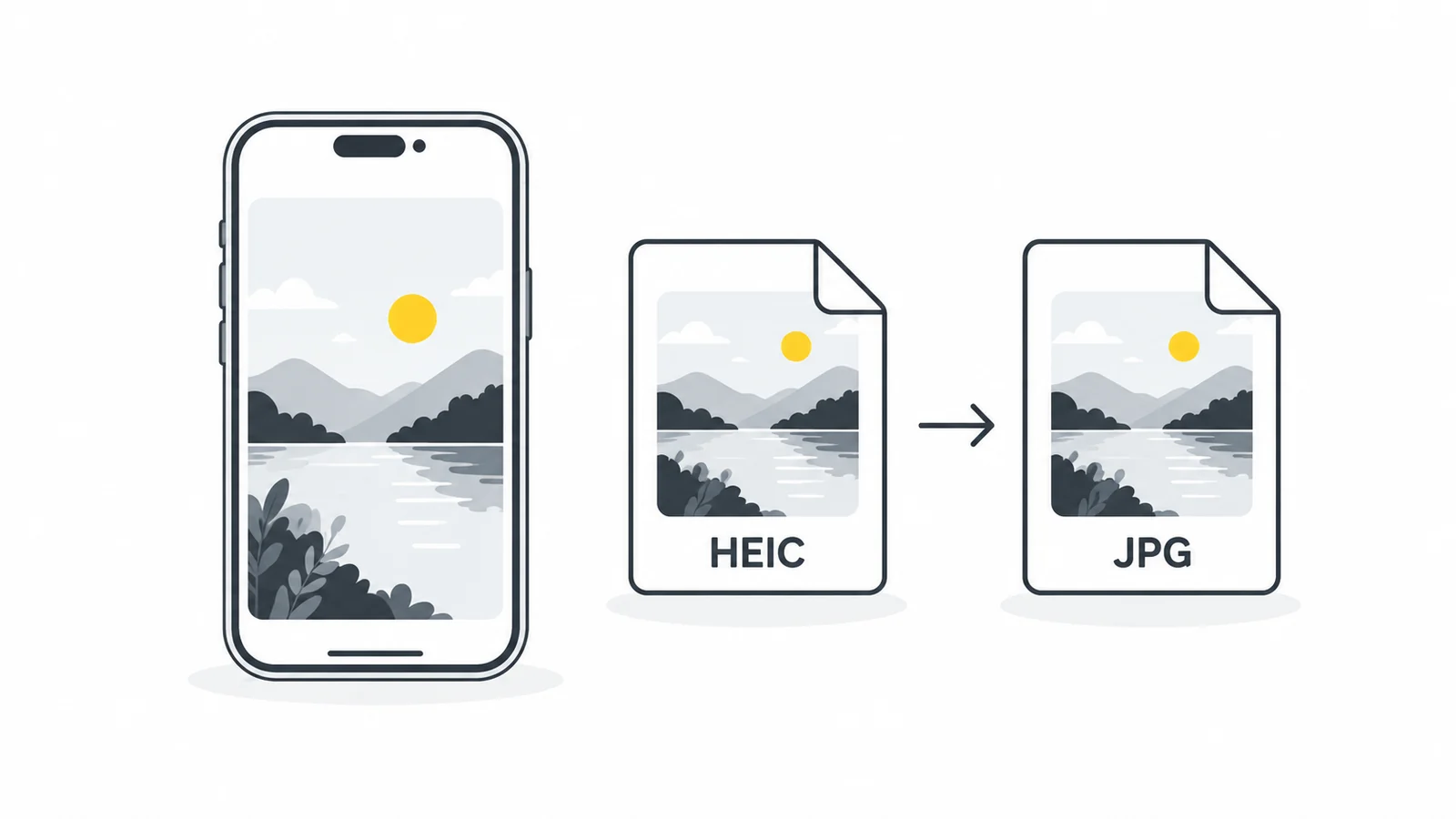
Convert a HEIC photo with Pixilo
- Keep the original. Save a separate working copy if necessary. If the photo is stored in the cloud, make sure the full file is available on your device before selecting it.
- Open the converter. Choose HEIC to JPG and select one HEIC or HEIF file within the displayed 25 MB limit. This is a still-image workflow, not a video converter.
- Wait for processing. The conversion library loads when needed. Leave the page open until the result and download control are ready.
- Inspect the preview. Check orientation, faces, text, highlights and shadows. The default JPEG quality is 90; you can adjust it between 50 and 100.
- Download and open the JPG. Give the copy a clear name and open it outside the converter. Check its dimensions and file size before sending it.
Pixilo processes the selected photo in your browser; the conversion code does not send the image to a conversion server. The page still needs its normal website resources, including the decoder. A failed library load is different from a rejected photo, so check your connection if processing never starts.
The current HEIC converter does not add a resizing step. It converts the image returned by its decoder. If the decoder returns multiple images, Pixilo uses the first result. Do not use this workflow when you need every image from a multi-image file or expect to preserve a Live Photo as a moving picture.
Can you make the iPhone take JPG photos instead?
On supported iPhones, open Settings, choose Camera, then Formats and select Most Compatible. This affects new captures; it does not convert your existing library. Apple also notes that some sharing methods may automatically send a more compatible version. Check the file you actually receive rather than assuming every transfer behaves identically.
Choose this setting based on your routine. If nearly every destination requires JPG, it may save a conversion step. If your existing apps handle HEIC well, keeping the efficient original and converting only when needed may be more convenient.
Why does an iPhone save photos as HEIC?
HEIF is an image file format designed for efficient storage. HEIC is the extension commonly seen on iPhone photos stored in that format. It is different from HEVC video, although the names often appear together in camera settings. A HEIC photo is not a broken JPG: it needs an application that understands its format.
On supported devices, Apple’s High Efficiency camera setting uses HEIF for photos. This helps reduce storage use compared with older formats. Compatibility varies between apps and receiving services, so a picture that opens in Photos may still be rejected by a website. Apple describes the format and its camera settings in its HEIF and HEVC support guide.
Before converting, identify the actual problem. “Unsupported format” calls for a format change. “File too large” calls for checking file size. “Minimum width not met” is about pixel dimensions. Converting to JPG can solve the first problem without solving the other two.
When should you convert, and when should you keep HEIC?
| Situation | Practical choice | Check before sending |
|---|---|---|
| A form explicitly requests JPG | Create a JPEG copy | File size, dimensions and any required crop |
| A recipient cannot open the photo | Try a JPEG copy | Open it in the receiving app |
| You are keeping a photo archive | Keep the original HEIC | Backups and access to an app that supports it |
| You need an editable original or special capture features | Keep the original and related files | What the editing workflow actually preserves |
JPG and JPEG refer to the same image format; the different extensions do not imply different quality. A JPEG is a useful delivery copy for many ordinary uploads and attachments. It should not automatically replace the source in your photo library.
A conversion is not a complete backup of an Apple photo-library item. Do not assume a standalone JPG retains motion, depth information, editing history or the appearance of an HDR original. If any of those matter, keep the original and use a workflow designed to preserve that feature.
What happens to quality and file size?
JPEG uses lossy compression. A setting of 90 is an encoder setting, not a statement that 90 percent of the original quality remains. A value of 100 is not a guarantee of a lossless copy either. Judge the output by the detail you need, especially small lettering, hair, textured surfaces and smooth color gradients. The MDN image format guide explains JPEG’s format characteristics.
A JPG can be larger than its HEIC source. That does not mean the conversion failed: you changed the representation to improve compatibility. Start with the default quality and compare the actual result rather than lowering quality merely to achieve an impressive reduction.
For example, suppose a form requires JPG, a maximum file size of 2 MB and a width of at least 1600 pixels. Convert first, check all three conditions, and only then decide whether further compression or resizing is necessary. A smaller file is not useful if it falls below the required width.
If you need specific dimensions after conversion, use Resize image and check both width and height. Keep the original proportions unless a different crop is intentional. Every additional lossy save can change the picture, so avoid repeatedly converting between formats. For a broader workflow, see how to reduce image file size.
What to do when conversion or upload fails
The file is not accepted
Check that it is a HEIC or HEIF still image within the tool’s size limit. A renamed file, an incomplete download or an unsupported variant may not decode. Changing the extension cannot repair the underlying file. Open the original in the app that created it; if it opens there, try exporting a JPEG from that app instead.
The page stalls or the browser closes
The compressed file size does not describe all the memory needed to process a picture. The browser must also hold the decoded image. Try one file at a time, close other demanding tabs and retry on a device with more available memory. If it still fails, use a native export rather than repeatedly retrying the same file.
The JPG looks different from the iPhone preview
Compare the same scene in the destination app, paying attention to bright areas, skin tones and orientation. The display and the decoding and export workflow can affect the result. Increasing JPEG quality does not necessarily fix a color or HDR difference. For work where those differences matter, use a color-managed editing workflow and review the exported file on the intended display.
The website still rejects the JPG
Confirm that you selected the downloaded copy rather than the original. Then check file size, dimensions and the site’s other requirements. A service can reject a perfectly valid JPEG for reasons unrelated to the format. Read its error message before making another export.
Check privacy before sharing the copy
A format change is not a complete privacy check. Inspect the downloaded file if location, capture time or other embedded information matters to you. Also check what is visible in the picture: a street sign, document or reflection remains visible after conversion.
Our photo metadata guide explains how to review embedded information and verify a sharing copy. Use it before publishing a sensitive photo rather than treating the JPG extension as proof that every detail has disappeared.
Frequently asked questions
Can I convert back to HEIC later?
Another application may let you save a HEIC file, but that will not restore details or capture features lost from the JPEG copy. Keep the original if you may need it later.
Is a screenshot a good replacement for conversion?
A screenshot captures what is displayed, which may include interface elements and a reduced view of the photo. It is not a substitute for exporting the original at the dimensions you need. Use an actual conversion for a clean photographic copy.
Should I convert every photo in my library?
There is no need if your storage and editing apps already support the originals. Convert the images you need to deliver, and keep those copies separate from your archive.
Make a JPG copy for your next upload
Convert one photo, check the result and keep the original safely stored.
Convert HEIC to JPGCheck photo metadata before sharing → ChatGPT
 Grok
 Google
 Perplexity
 Claude