Image compression
How to Reduce Image File Size Without Visible Quality Loss
Reduce image file size with a practical workflow for dimensions, formats and quality. Learn what Pixilo changes and when to keep the original.
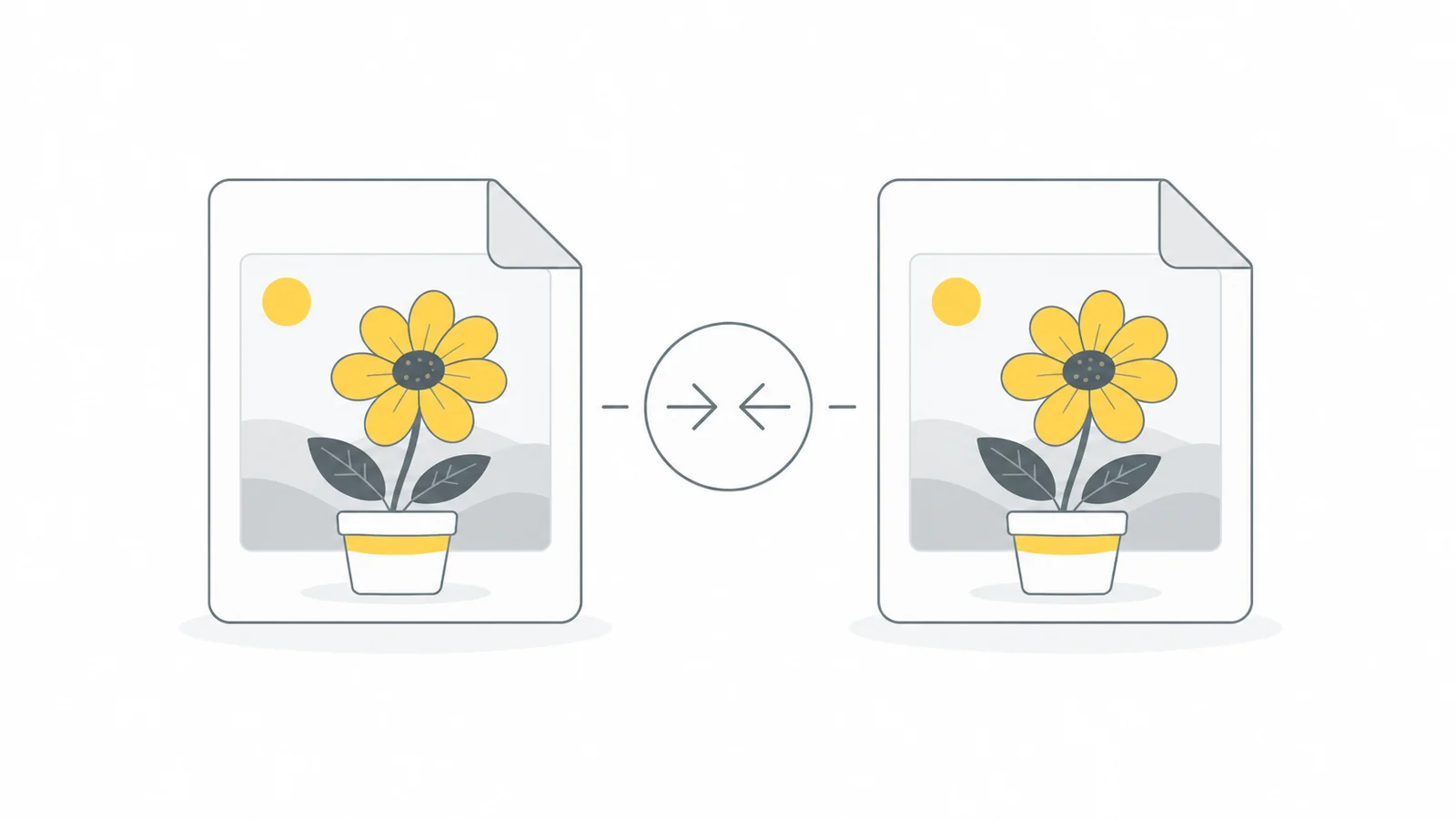
Compress an image in five steps
- Keep the original so you can make a different copy later.
- Open the image compressor and select up to 20 JPG, PNG or WebP files, up to 25 MB each.
- Wait for processing. There is no quality slider in this automatic compressor.
- Compare the result with the original. Check faces, lettering and edges at the intended viewing size.
- Download the files you want to use. If compression does not make a file smaller, the tool keeps the original.
Only prepare the image further when needed: crop to remove unwanted edges, resize to change pixel dimensions, or convert PNG to WebP when WebP suits the destination. These are separate choices, not required compression steps.
Separate file size from image dimensions
File size is the amount of data you transfer, usually shown in KB or MB. Dimensions describe the width and height in pixels. An upload form may restrict one, both or neither. Read the requirements before adjusting quality: reducing file size alone will not fix a file with the wrong dimensions.
For a concrete planning example, a 4000 × 3000 image contains 12 million pixels. A 1600 × 1200 copy contains 1.92 million pixels. That is 84% fewer pixels, not necessarily an 84% smaller file. The encoded file size also depends on the image and the export settings. Resize only when that smaller copy is sufficient for the destination.
What the Pixilo compressor actually does
JPG stays JPG, PNG stays PNG, and WebP stays WebP. The maximum is 8000 pixels per side and 32 million pixels in total. Animated PNG and WebP files are kept unchanged.
Measured examples with the current compressor
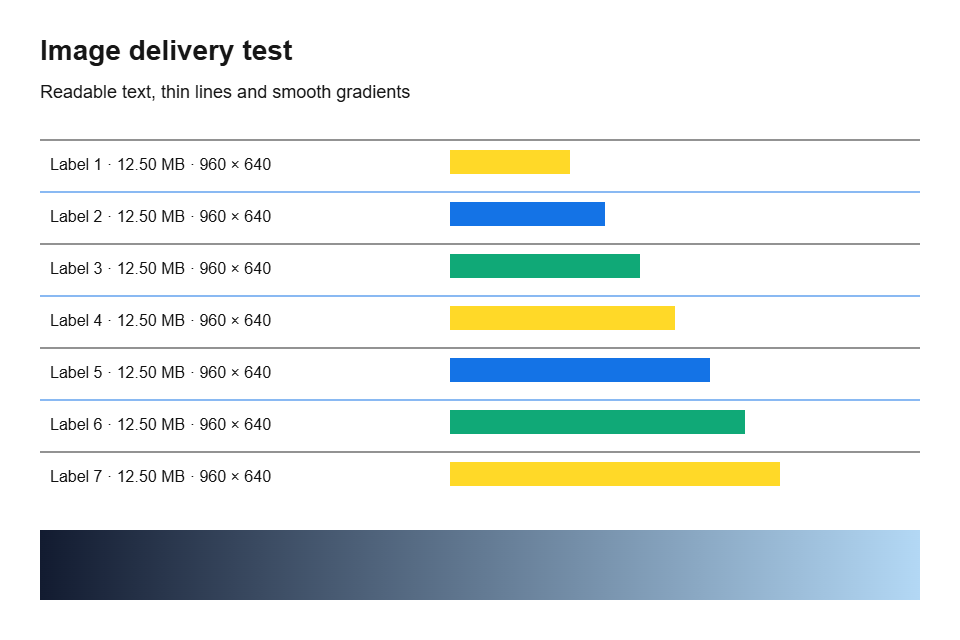
We downloaded these PNG files from the current homepage compressor on 2026-10-08, using Microsoft Edge 154.0.4258.62. The format and dimensions stayed the same. We also compared the decoded pixels: they matched for all three examples.
Illustration
Text and thin lines
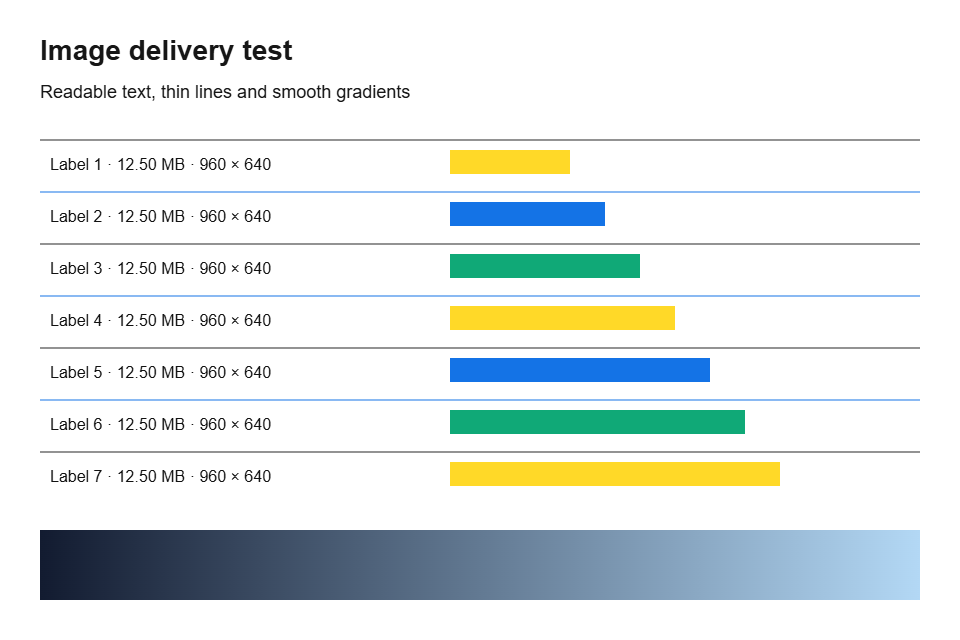
Transparent graphic


These measurements describe these three graphics, not every image. JPG and WebP use lossy compression; the PNG results do not predict their quality or file sizes. Keep the original when a new export offers no saving.
File sizes in these measured comparisons use decimal units: 1 kB = 1,000 bytes and 1 MB = 1,000,000 bytes. Pixilo’s file-size tool calculates its KB and MB limits with 1,024 and 1,048,576 bytes. Check the destination’s rules and allow a small margin.
Where to look for visible damage
Quality loss shows up as fuzzy letters and logos, smoothed facial details, blocks around edges or bands in skies and gradients. View the image at its intended display size, then at 100% in an image viewer: one image pixel is shown as one screen pixel. This is different from setting the browser page zoom to 100%.
If the result has the same dimensions but loses detail, use the original or a less compressed version from a tool with adjustable quality. If resizing made the letters too small, keep more pixels. For transparent product images, check the edges against the actual page background. A large percentage saving is useful only if the image remains usable.
What if you need to fit a strict upload limit?
First check the receiving service’s accepted formats, maximum file size and minimum pixel dimensions. Enter its size limit in the dedicated tool and select an accepted output format. Allow resizing only if the result can still meet the dimension rules. Check the downloaded file before uploading it.
Fix the problem that remains after compression
The file is smaller, but the upload is still rejected
Check the extension, accepted format, pixel dimensions and file size limit separately. A WebP under the limit still fails a JPG-only form. Renaming .webp to .jpg does not convert it. Return to the original and use a converter that produces the required format.
Text is blurry or a logo has rough edges
Compare dimensions first. If the source was downsized, increasing the quality slider cannot restore the missing pixels. Use the original at an appropriate size and compare a lossless export when exact edges matter. Do not treat a screenshot, a photograph and a transparent logo as interchangeable test images.
The new file is larger than the old one
Different encoding settings can outweigh the benefit of changing format. Compare the downloaded files rather than assuming WebP must win. Keep the original when it already meets the requirements. Avoid a JPG → WebP → JPG cycle: another lossy export can change detail without solving your upload problem.
For websites, test the whole page
Smaller image files address only part of loading performance. A late-discovered image or an unnecessarily delayed request can still load slowly. If a hero image is the Largest Contentful Paint element, inspect its request timing as well as its size. Google’s LCP optimization guide explains these separate delays.
Frequently asked questions
Does quality 100 mean a lossless copy?
No. Maximum quality in JPEG or lossy WebP does not mean lossless encoding. Exact preservation requires a lossless mode. Pixilo’s automatic compressor has no quality slider: it optimizes PNG losslessly and recompresses JPG and WebP with a moderate lossy setting.
Can I guarantee a file under 100 KB?
Not with a single universal setting. The detail in the image, dimensions and encoder affect the output. Check the receiving service’s minimum dimensions, export a copy and measure it. If the required readability or detail cannot survive the limit, request another upload method rather than making the image unusable.
Should I replace my original with the compressed version?
Keep the original for future editing, printing or a larger layout. Store the delivery copy separately and give it a descriptive filename. For a website, verify that the published page actually loads the new file; changing a local copy alone does not update the live page.
Try one image first
Compression starts automatically. PNG is optimized losslessly; JPG and WebP use a moderate quality setting. The format and dimensions stay the same.
Open image compressorChoose an image format → ChatGPT
 Grok
 Google
 Perplexity
 Claude