Image formats
Why Does My Transparent Image Have a Black or White Background?
Find out whether a background is in your image or just the preview. Fix transparency problems, avoid edge halos and choose a background for JPEG export.
First check whether the background is really in the file
Transparent pixels do not have a visible background color of their own. An image viewer has to show something behind them, often white, black or a checkerboard. Changing the viewer or switching between light and dark mode can therefore change how the same transparent file looks.
Open the image in an editor that displays transparency and place it over a bright background, then a dark one. If the surrounding area changes with the background while the subject stays intact, transparency is working. If a white rectangle follows the image onto both backgrounds, those white pixels are part of the image.
Do not use a screenshot to check transparency. A screenshot captures the screen as displayed, including the viewer’s background. It is a new picture, not a copy of the original transparent file.
Common causes of black, white or checkered backgrounds
| What you see | Likely explanation | What to do |
|---|---|---|
| Black in one app, white in another | Different preview backgrounds | Test the file over two colors in an editor. |
| A white rectangle after exporting JPG | Transparency was flattened during export | Return to the transparent original or choose the final background intentionally. |
| A checkerboard that remains on every background | The pattern may be baked into the image | Find the original transparent asset rather than its preview. |
| A pale outline around the subject | Edge pixels may contain a previous background color | Inspect and clean the edges against the intended background. |
A filename ending in .png is not proof of transparency. PNG supports transparency, but a PNG can also be fully opaque. Renaming a JPG to .png does not remove its background or convert its contents.
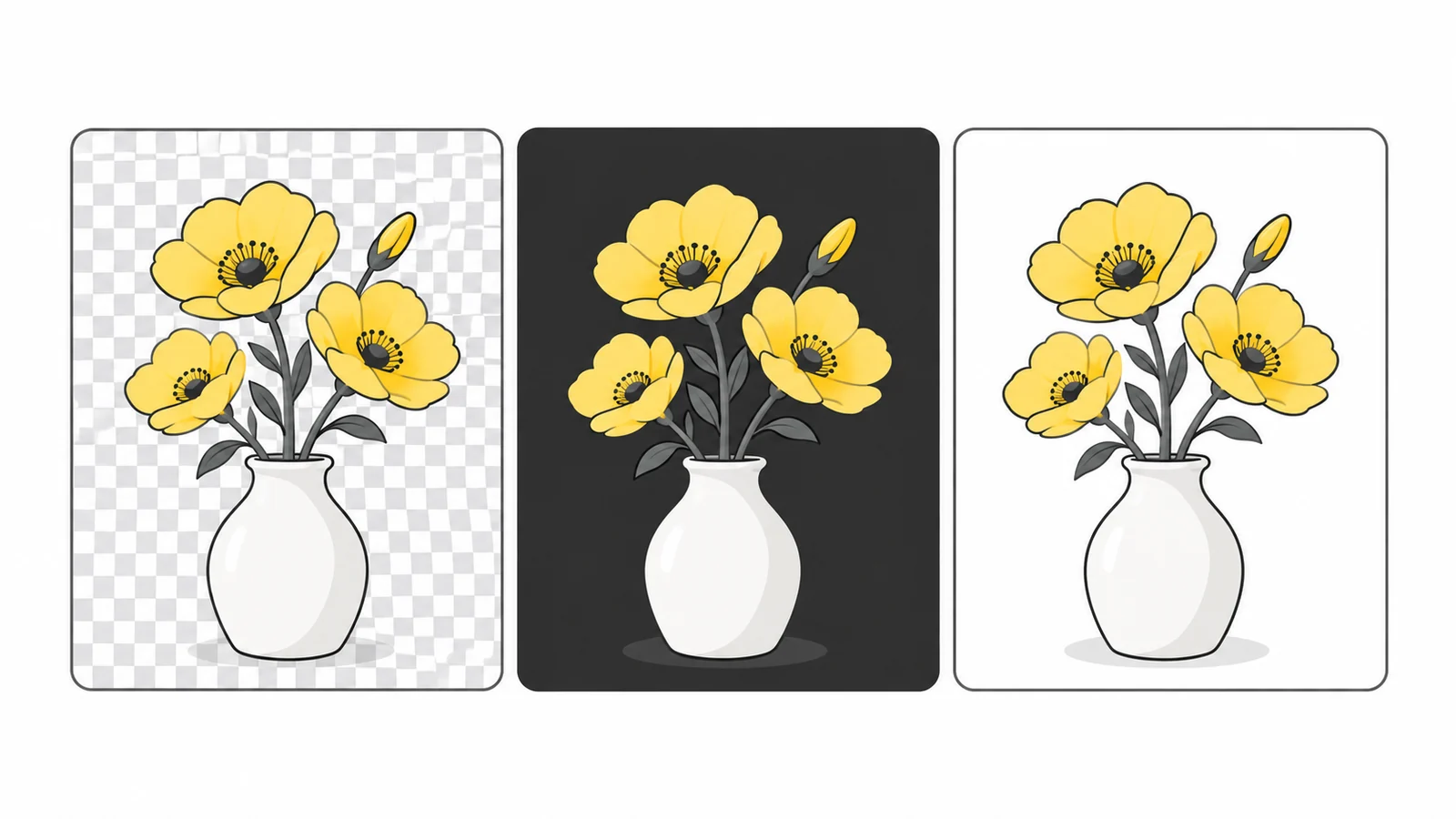
Which formats keep a transparent background?
PNG and WebP support transparency. JPEG does not have the transparency channel needed to keep a cutout background empty. These capabilities are documented in the MDN image format guide.
Choose PNG when you need a broadly usable transparent graphic and want to preserve crisp edges without lossy compression. WebP is worth considering for web delivery when the receiving service accepts it. Supporting transparency does not mean every export is lossless: compare fine text and edges after compression. See PNG vs WebP for the wider format tradeoffs.
If an upload form requires JPG, transparency is no longer an option in the final file. Decide which solid background should replace it. A white background is often suitable for a white page, but a logo intended for a dark panel may need a different version.
Choose a background before making a JPEG
- Find the actual transparent source. Use the downloaded PNG or WebP, not a screenshot or a search-result preview.
- Open Pixilo’s image background color tool. Select the source and choose the background color you want behind its transparent areas.
- Process the image. This tool creates a JPEG copy with the chosen solid background. It does not keep transparency in the result.
- Download and inspect the JPEG. Check the edges, shadows and corners against the place where the image will appear.
- Keep the transparent original. You will need it if the background color changes later.
The tool fills behind transparent pixels. It does not identify and remove an existing white, black or checkered background. If your source already contains those pixels, changing the background color underneath them will not make them disappear. That requires a separate background-removal or masking workflow.
If you need to keep transparency while converting a PNG, use PNG to WebP instead and inspect the result. Converting a flattened JPEG back to PNG or WebP cannot reconstruct the original cutout.
Why does a white halo appear around the edges?
The edge of a cutout often contains partially transparent pixels to make curves look smooth. If those pixels were prepared against white, they may create a pale fringe when placed on black. Hair, soft shadows and fine lettering make this especially noticeable.
Start by checking the original asset. If it already has the fringe, changing the file extension or increasing compression quality will not fix it. Use an editor with masking or edge-cleanup controls, and preview the result against the intended background while making adjustments.
For a logo supplied by a designer, ask for a clean transparent export or the vector original. A new export from the source is often better than trying to repair a small flattened copy. Test both a light and a dark background before deciding the edge is clean.
A mask tells an editor which parts of the image to keep and which to make transparent. Edge cleanup changes the partly transparent pixels around the subject; changing the file extension cannot do that.
Soft shadows and translucent details need a closer check
Transparency is not always an on-or-off cutout. A soft shadow, glass effect or antialiased curve can contain pixels that are only partly opaque. These blend with the color behind them, so their appearance should change when you move the image from white to black. That change alone is not a defect.
For example, a translucent black shadow may be clear on white and almost invisible on black. A pale glow can behave the opposite way. If you need the artwork to look identical on every background, a transparent export may not suit the design; make versions prepared for the intended light and dark surfaces.
When choosing a solid background for JPEG export, inspect these areas after processing. The export combines the transparent artwork with that one background. The resulting pixels are then opaque, so placing the JPEG on a different page color will reveal a rectangular boundary. Changing the website’s background afterward cannot change the JPEG’s baked-in color.
A thin edge visible only on a contrasting background can also come from an intentionally soft edge, a leftover background color or the way the preview is scaled. Check the original at its native size before attempting repairs. If the edge changes noticeably only when the viewer zooms, compare another viewer or the final published size to avoid “fixing” a preview artifact.
Example: preparing a transparent logo for a white upload form
Suppose you have a transparent PNG logo, but the receiving form accepts only JPG. Open the PNG over white first. Check that light lettering does not disappear, that shadows look appropriate and that the margins give the logo enough space. If the logo was designed for a dark background, obtain its light-background version before converting it.
Choose white in Pixilo’s background-color tool and create the JPEG copy. Open that copy outside the tool and check the corners and edges. If a checkerboard is still visible, it was probably already in the source; converting again will not remove it. If the result has a pale fringe, return to the original artwork and address the edge rather than repeatedly re-exporting the JPEG.
If the destination instead accepts WebP and you want to keep the background transparent, convert the original PNG directly to WebP. Do not use the white-background JPEG as the intermediate file. Finally, check the actual uploaded version: the receiving service may still create its own opaque preview or derivative.
What if transparency works locally but not on the website?
Check the file the website actually serves. A content system or image optimization service may have created a JPEG derivative, even though you uploaded a PNG. Download the displayed version and inspect that file separately from the original.
Also check the page’s background. A white image container can look like a white rectangle in the image. If changing the container color changes the apparent background, the file may be fine. For a white logo on transparency, a white container can make the whole logo appear missing.
When replacing a file, confirm that the page is loading the new version rather than an older cached copy. Review the published page, not only the editor preview. If a delivery service is flattening transparent files, adjust its format settings or provide a separate image with the desired solid background.
Frequently asked questions
Does a checkerboard mean the picture is transparent?
Only if the checkerboard is the editor’s display of empty areas. A downloaded picture can contain a real checkerboard pattern. Test it over another background to tell the difference.
Can I make a JPG transparent by converting it to PNG?
No. The new format can store transparency, but the conversion does not know which pixels should be removed. You need to create a mask or obtain the transparent original.
Will changing the background remove white inside my logo?
No. Intentional white parts of the artwork remain white. A background-color tool works behind transparent areas, not as a replacement for every matching color in the picture.
Why did the image gain a background after I copied it?
The copying or receiving application may have used a flattened representation. Try transferring the original file through the app’s upload or insert-file option, then check what was saved.
Can I convert WebP to PNG?
Yes. Use WebP to PNG to create a PNG copy that keeps any transparency in the WebP image. This does not restore detail removed by earlier lossy compression.
Prepare the right version for sharing
Keep a transparent source for future use. Make a separate JPEG with an intentional background when the destination requires it.
Choose a background colorConvert PNG to WebP → ChatGPT
 Grok
 Google
 Perplexity
 Claude