Image sharing
How to Compress Images for Email
Prepare smaller photo attachments while preserving useful detail. Choose compatible formats, check total attachment size and review what you share.
Decide what the recipient needs
A quick preview of a room, a readable receipt and a photograph intended for print need different exports. Before reducing anything, decide what information must remain visible. Small text can become unreadable long before a photograph looks obviously damaged.
For a preview, test a reduced copy and view it at the size a recipient is likely to use. For a document, zoom in and read the smallest important text. For print or detailed editing, ask for the required dimensions or share the original through an appropriate file service instead of forcing it into a tiny attachment.
Check the total attachment limit
There is no universal email attachment limit. Personal Gmail accounts allow up to 25 MB in total attachments; work or school limits can be controlled by an administrator. Gmail may replace oversized attachments with a Drive link. Check Gmail’s attachment documentation and the recipient’s requirements rather than treating that number as a rule for every mailbox.
Leave room for other attachments and the receiving service’s limits. Ten photos that are each acceptable on their own may still make one message too large. Check the complete draft after attaching everything, not just an individual file in your downloads folder.
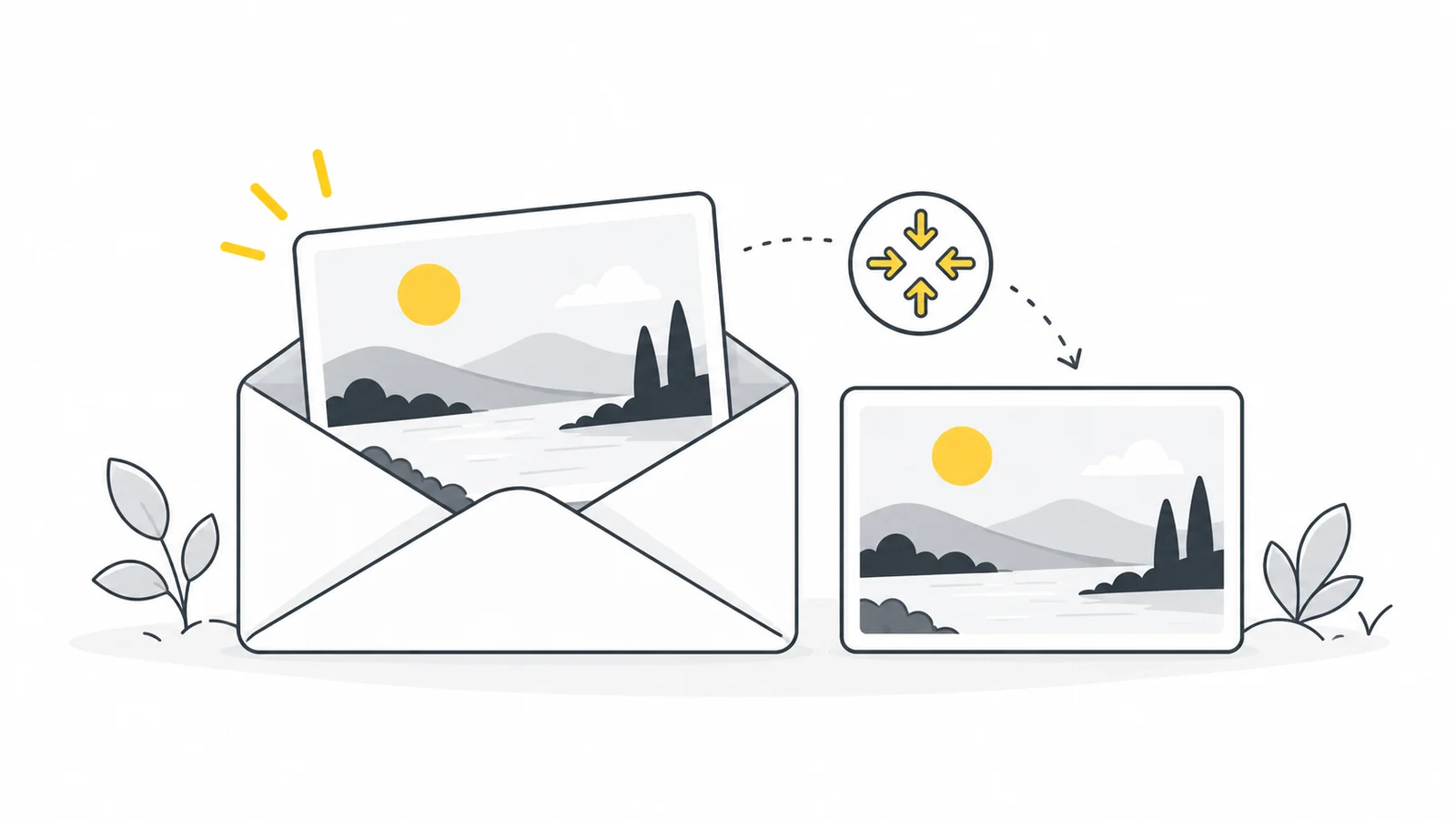
Make a smaller, compatible copy
Use the image compressor to reduce file size without changing the format or dimensions. If the recipient needs JPEG and your source is WebP, create a copy with WebP to JPG and check it before attaching.
- Save the originals separately so your copies for sharing cannot replace them.
- Use the resizer only if the photo has more pixels than the recipient needs. Keep the aspect ratio locked and change one dimension.
- Choose JPEG for a normal photograph when compatibility is the priority.
- Inspect the downloaded file, especially faces, labels and small text.
- Attach the copies and check the combined size before sending.
For an ordinary preview, try a 1600 × 1200 copy of a 4000 × 3000 photo. If an important label becomes hard to read, create a copy with more pixels from the original. Check the downloaded file size too.
Should you put the images in a ZIP?
A ZIP file can group several images into one download, but already compressed photographs may not shrink much further. Treat it as packaging rather than your main image optimization step. Remember that the recipient also needs to extract it.
Review what you are sharing
Check visible addresses, faces and private details before sending. If appropriate, use the metadata removal tool to re-export a copy. Removing embedded data does not hide information visible inside the picture, so review the image itself too.
Pixilo processes selected images in your browser for these operations. Once you attach the result to email, its delivery and storage are handled by your email provider. Open the final attachment yourself before sending.
Prepare an attachment your recipient can use
Reduce dimensions without losing the detail needed for the message.
Resize a photoLearn the file-size workflow → ChatGPT
 Grok
 Google
 Perplexity
 Claude