Image sharing
Images in Email Newsletters: A Practical Guide
Choose clear images for email newsletters, keep essential information readable without them, and check crops, image loading and links before sending.
Give each image a clear purpose
A product photo can show a new item. An event photo can help readers picture the venue or activity. A diagram can explain a change more clearly than a paragraph. Choose the image according to what it helps the reader understand in this particular email.
Ask what would be lost if you removed it. If it serves only as decoration, a smaller image or no image may leave more room for the message. If the photo shows an important product detail, use a view where that detail is easy to see on a phone.
This guide covers images displayed within a newsletter. For photographs sent as downloadable attachments, use our guide to compressing images for email.
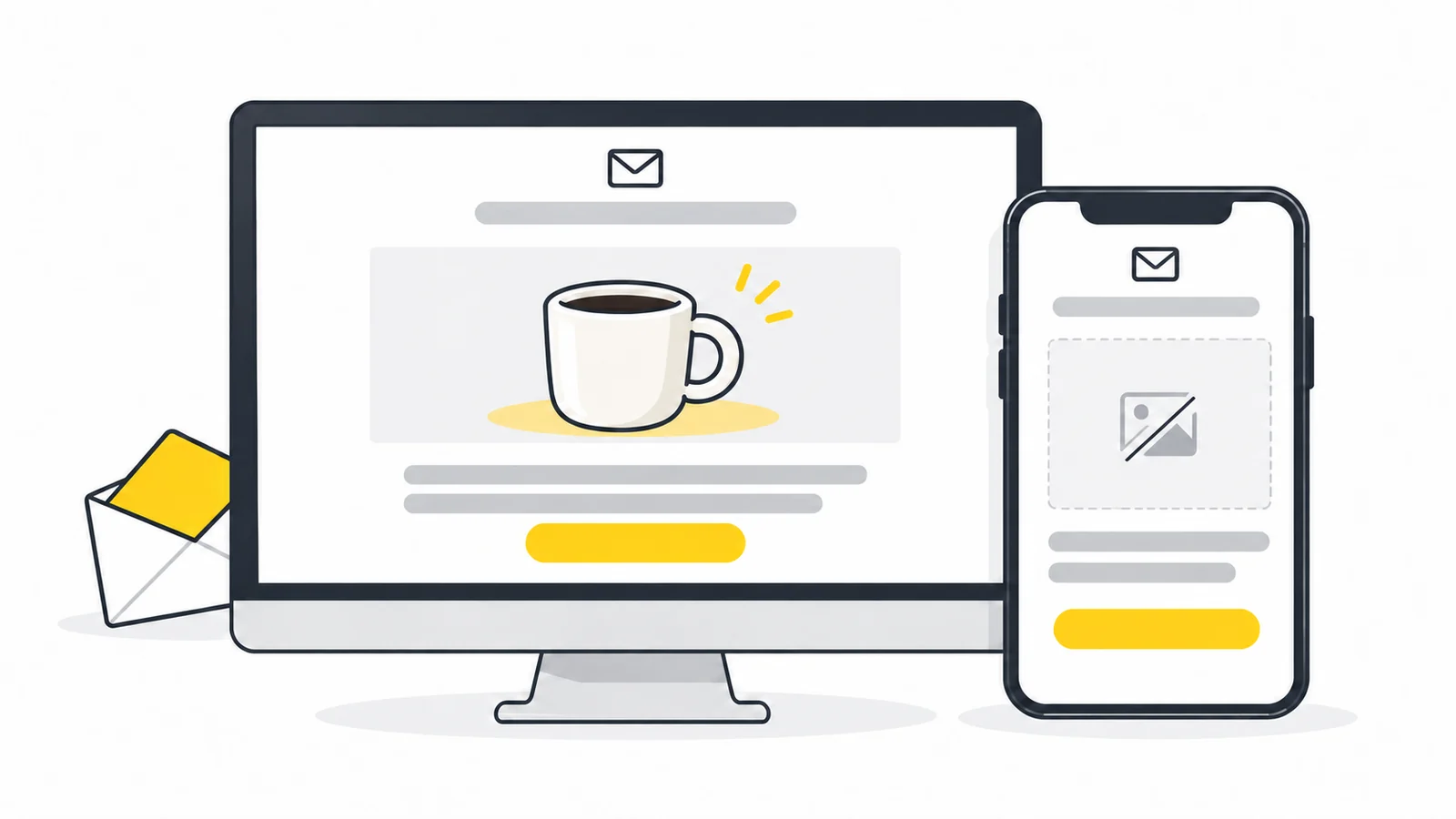
Keep the essential message outside the image
Write the headline, essential details and main link as text in your newsletter editor, for example in Moosend. For a sale, include the discount, conditions and end date; for an event, the date, location and booking link. A promotional picture can support these details, but should not be the only place they appear.
Choose alt text according to the image's role:
- A photo that adds useful information: describe the detail readers need, such as a product's visible shape or feature.
- A purely decorative image: use empty alt text if it adds no information and is not a link. W3C's decorative image guidance explains why unnecessary descriptions can distract screen reader users.
- An image that is the only content of a link: name the destination or action, such as “View the blue mug”, rather than describing only its appearance. See W3C's functional image guidance.
Alt text does not replace the email's main text: some apps do not display it in every situation. Mailchimp explains these limitations. For more examples, use our alt text guide.
Prepare the image for your email template
Start with the dimensions recommended for your template's image block. A full-width photo and a small product card need different exports. Crop a copy to fit the available space without stretching the subject, using the image cropper if needed.
Separate the width shown in the email from the file's pixel dimensions. If a photo is displayed at 600 pixels wide, you could compare files that are 600 and 1200 pixels wide while displaying both at 600. The wider file supplies more image pixels for a high-resolution screen; it should not make the email wider. It also needs a suitable original and can mean a larger download. These are example sizes: follow your template's guidance and compare the images in the received test emails. Mailchimp's recommendations vary by template and content block.
Check that your newsletter service accepts the file, then verify that the received email displays it in the apps you test. A successful upload does not prove that the image will display correctly for recipients. JPEG is a practical starting point for photographs; PNG is useful for transparency and graphics. Mailchimp recommends JPG, PNG or GIF in its template image guidance. Check your own service's requirements before reusing an image saved for your website.
If you use an animated GIF, make the first frame useful on its own. Some recipients may see only that frame; Microsoft's animation guidance explains how animation settings can cause this in Outlook. Do not put a required step or an offer only in later frames.
Review the images' combined file size as well as their detail. Several large pictures can make an email slow to load. Our file-size reduction guide covers preparing smaller copies.
Example: announce a new product
Imagine a homeware shop announcing a new blue ceramic mug. The following versions use the same product photograph:
| Version | With images | Without images |
|---|---|---|
| The announcement is one linked picture | The picture contains the mug, product name, price, availability and “View the blue mug” lettering. | There is no separate announcement or text link; the reader must rely on any alt text or linked placeholder the app shows. |
| The photo supports separate text | The photo shows the mug. The product name, price and availability are written in the editor, followed by a text link or text-based button. | Readers can still identify the product, read the details and use a working link to the product page. |
For the second version, crop the photograph so the mug and handle remain visible on a phone. If the photo is a separate link to the product, give that link suitable alt text and check its destination as well as the text link.
Test the email as a recipient will see it
An editor preview is useful for arranging content, but email apps can display the same message differently. Send a test through your newsletter service and open the received message on a phone and a computer. Where possible, include the email apps your audience uses, such as Gmail, Outlook or Apple Mail. Mailchimp's preview and testing guide explains why both previews and test emails matter.
- Check the image's main subject and crop. Are faces, products and important details visible without stretching or making the layout wider?
- Read at the displayed size. Can you understand the photo without zooming? Include necessary labels or diagram explanations in the email's text too.
- Try light and dark appearance settings where available. A dark logo on a transparent background may become hard to see on a dark background. Try a version with a contrasting outline or a suitable solid background within the image, and check it in both light and dark mode. Mailchimp's dark mode guidance covers logo contrast and differences between apps.
- View it with images blocked where the app allows it. Read the remaining content, inspect the alt text and check that the main link is available.
- Follow the links. Check clickable images and buttons separately; they may have different destinations.
If an image does not appear, identify what failed
Work through these checks in order. Classic Outlook can block external pictures, as described in Microsoft's download guidance. Gmail may block images in messages it considers suspicious; see Gmail's image settings.
- Check image loading in the received test. If the email app offers to show or download pictures, allow them for your own test message. If they appear, the app had blocked image loading; compression will not override that setting.
- Find the problem image in the newsletter editor. Open its image block and confirm that the correct library file is selected. If the file is missing, upload a saved copy again and select the new item. For an externally hosted image, check the address used by that block.
- Check access to an external file. Open the direct image address in a private browser window without signing in. A login screen or sharing page is not the image file. Use the service's image library or an appropriate public image address instead. Success here confirms browser access without a login, not that every email app can display it.
- Investigate differences between apps. If the file is accessible but fails in one app, check that app's image-loading settings first. Then check the format against your service's guidance. Try a JPEG copy for a photograph or PNG when transparency is needed, inserted through a standard image block. If a custom template still fails, ask its maintainer to check the image markup.
- Send a fresh test after the correction. Open it in the affected app. Check the image, its current alt text and both the image link and the separate text link, where present.
Mailchimp's troubleshooting guide explains problems with image addresses, restricted hosting and display. Follow your own service's instructions for selecting or replacing library files.
A final check before sending
- The crop, detail and file size suit the template.
- The main message and link work without images.
- Alt text fits each image's role.
- Any GIF's first frame works on its own, and logos remain visible in light and dark appearances.
- The final received test has been checked in relevant apps, including image sources and link destinations.
Prepare your newsletter image
Make a copy sized for your template's image block, keeping the important detail clear.
Resize your imageCompress an image → ChatGPT
 Grok
 Google
 Perplexity
 Claude