Image formats
AVIF vs WebP: Which Image Format Should You Use?
Compare AVIF and WebP for website images. Learn how to test file size and quality, handle transparency and fallbacks, and choose a practical export workflow.
AVIF vs WebP: the differences that matter
Both formats can help reduce the amount of image data a website sends to visitors. Neither guarantees a smaller file for every picture. A detailed landscape, a flat illustration and a transparent product photo can respond differently to compression. Your source image, export settings and intended display size matter as much as the extension.
| Question | AVIF | WebP |
|---|---|---|
| Can it compress photographs? | Yes; compare detail and file size | Yes; compare detail and file size |
| Can it keep transparent areas? | Yes, with a suitable encoder | Yes, with a suitable encoder |
| Is lossless encoding possible? | The format supports it; the tool must offer it | The format supports it; the tool must offer it |
| What about HDR? | The format can carry HDR; the whole workflow must preserve it | Use another workflow when preserving HDR is required |
| Does a website need testing? | Check delivery, browser support and visual quality | Check delivery, browser support and visual quality |
These are capabilities of the formats, not a list of features available in every converter. The MDN image format guide explains AVIF’s capabilities, while Google’s WebP documentation covers WebP compression and transparency. For the wider choice, including JPG, PNG and graphics with text, see the website image format guide.
Is AVIF always smaller than WebP?
No. The slider below shows two actual Pixilo exports from the same 1920 × 1440 JPG: a 299.0 kB WebP at quality 80 and a 275.7 kB AVIF at the fixed quality-65 preset. The AVIF saves 23.3 kB, about 8% relative to the WebP. That is the relevant comparison when replacing this WebP, even though AVIF saves about 33% relative to the 413.1 kB source JPG.
Both candidates were made directly from that JPG, without resizing. These are complete file sizes at different, format-specific quality settings; they were not calibrated to equal visual quality. The source was already compressed, so neither export can recover its lost detail. The result describes these files and settings, rather than a guaranteed saving from AVIF.
Drag the divider across the rock texture, the mountain skyline and the smooth sky. Inspect the detail view for softened texture, halos and color bands, then return to the full image to judge whether a difference matters at the intended size. If you would reject either version’s appearance, compare a different export before choosing by size.
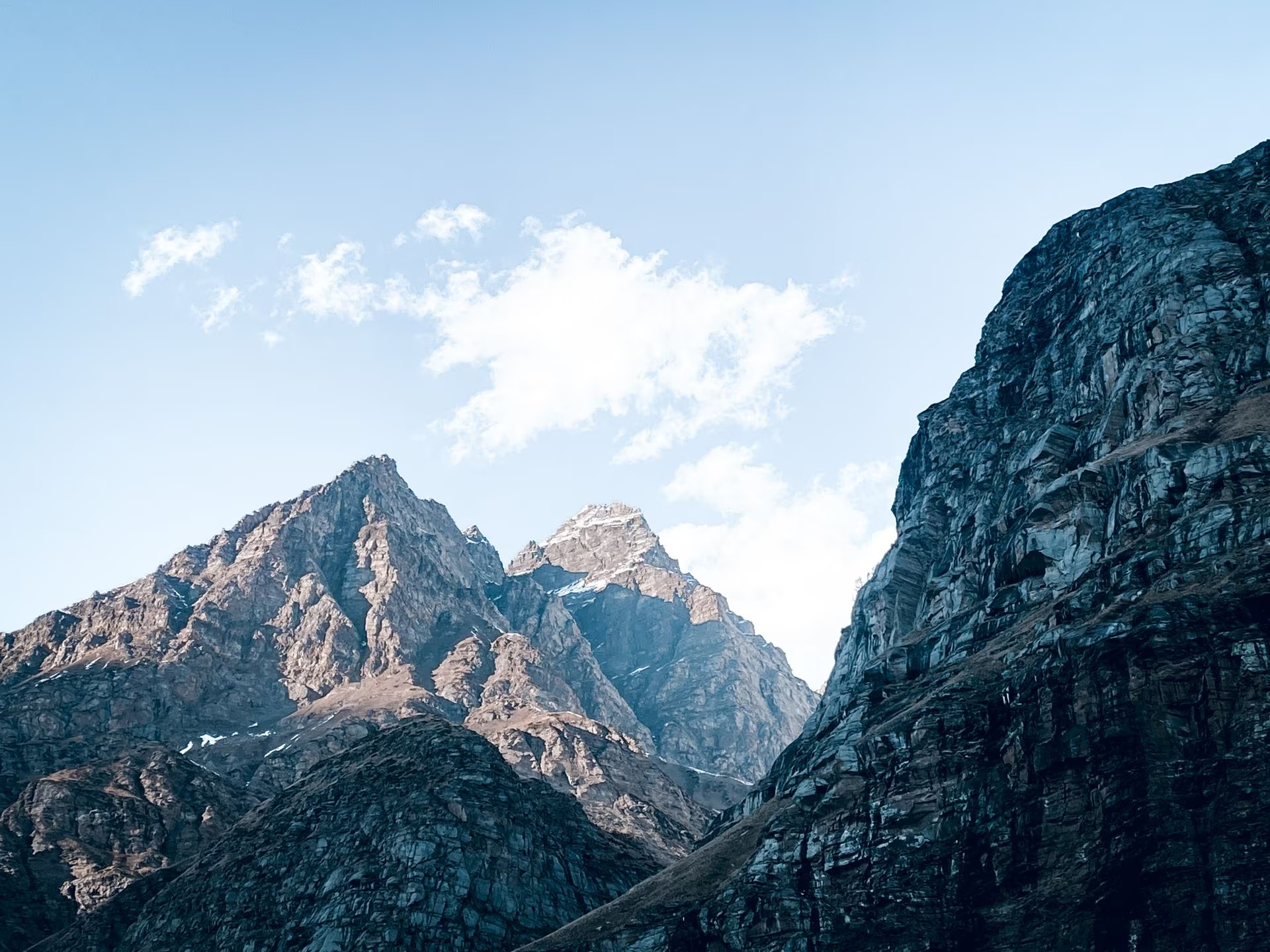
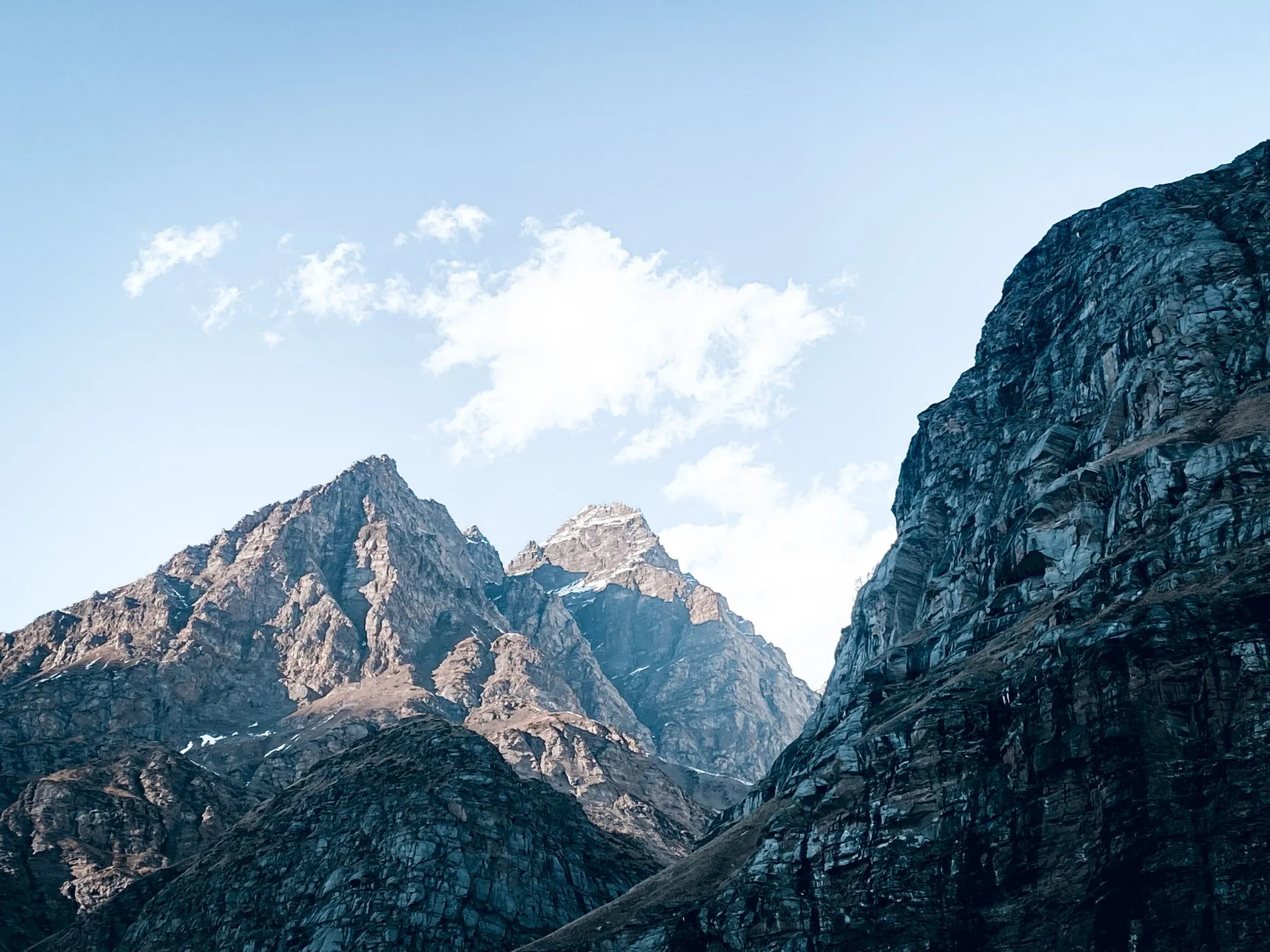
Pixilo exports from the same JPG: WebP quality 80, AVIF quality 65. Both 1920 × 1440 px. Drag the divider or use the arrow keys to compare. Quality settings are format-specific. Photo: Pexels.
When is AVIF a good choice?
Test AVIF on photographs that contribute noticeably to a page’s download: large product views, editorial photos and banners. Evaluate the saving in bytes as well as a percentage. The 23.3 kB saved above is a modest reduction for one image; its practical value depends on how often that image is loaded and how much work the alternative adds to your publishing process.
Before converting a library, try a representative group: fine fabric or hair, dark areas and smooth gradients. Keep the dimensions constant and reject versions that lose important detail. AVIF is a useful replacement where the remaining saving matters and your website can deliver it reliably. Keep WebP for images where that trade-off does not work.
The format’s support for HDR does not make an ordinary conversion an HDR workflow. Pixilo’s current AVIF tool creates an 8-bit, lossy export from browser-decoded pixels. It does not offer HDR preservation or a lossless switch. Keep a separate original for archival, print or specialist color work.
When should you keep WebP?
Keep WebP when it already looks good, its file size is suitable and your website handles it reliably. Replacing it solely because another format is newer adds work without a guaranteed benefit. Your publishing system, image processing service or editor may also have a simpler WebP workflow.
For graphics with text and sharp edges, test the output particularly carefully. If lossy exports damage small labels or introduce artifacts around lines, consider a tool that offers lossless WebP, or keep PNG where appropriate. Pixilo’s WebP conversion controls do not provide a dedicated lossless mode. Read PNG vs WebP for a closer look at this decision.
If a recipient or upload form asks for JPG or PNG, meet that requirement first. A format that works well on your website can still be rejected by a submission system. Website delivery and downloadable files do not have to use the same format.
How to compare AVIF and WebP with Pixilo
- Start from the original. Use a JPG, PNG or WebP source and keep it separately. Avoid making one test export from another compressed test export.
- Set the dimensions first. If needed, use the image resizer to create a common source for both candidates. For a straightforward comparison, keep the longest side at or below 4000 pixels.
- Create the AVIF version. Use JPG → AVIF / PNG → AVIF / WebP → AVIF. The current tool uses a fixed lossy quality-65 preset and retains the source’s pixel dimensions; it does not have an AVIF quality slider.
- Create the WebP version from the same source. Use JPG to WebP or PNG to WebP. Adjust the WebP quality while checking the visible result. These converters offer a resize limit of 4000 pixels on the longest side, enabled by default. Check that resizing has not changed only one candidate’s dimensions.
- Inspect both downloaded files. Check dimensions and visible quality first. Then divide the byte difference by the WebP file size to calculate the saving from replacing it. Keep WebP when the AVIF is larger or the smaller result loses necessary detail.
- Test the website. Check the published image on a phone and a desktop, including the actual crop and display size. Keep the existing version until you have verified the replacement.
Quality values are not a common scale across formats or encoders. A setting of 65 for AVIF and 65 for WebP does not establish equal quality. Pixilo processes selected images locally in your browser. The AVIF encoder is downloaded when needed, so a first conversion also involves loading the encoder.
What should you check besides file size?
Fine detail and text
Inspect hair, grass, fabric and small lettering at 100% zoom, then return to the size visitors will actually see. Zoom helps reveal damage; normal viewing size helps you decide whether it matters. For screenshots, readable text usually matters more than achieving the smallest possible export.
Gradients and dark areas
Look for visible bands in skies, studio backgrounds and shadows. Check that dark areas retain useful detail rather than becoming flat patches. If a candidate looks wrong, use a less aggressive export or another format rather than assuming a smaller file is an improvement.
Transparency and edges
Preview transparent images against both light and dark backgrounds. A pale halo around a product cutout can disappear on white and become obvious on black. If you need to investigate a background problem, see why transparent images can appear to have a black or white background.
Color, animation and the original file
Do not assume that a converter retains every feature the format can store. Pixilo redraws the decoded image for export; it is not intended to preserve an animated source, HDR information or all original metadata. Check the downloaded result and keep the source when these features matter.
Here, 100% means viewing the image at its actual pixel size in an image viewer: one image pixel is shown as one screen pixel. The browser’s page zoom is a separate setting.
How to serve AVIF with a WebP or JPG fallback
Both formats are supported by current major browsers, but older browsers and some embedded viewers can require a fallback. If you manage your own HTML, a picture element lets you offer alternatives. This example uses illustrative filenames: create and upload the actual files before using it.
<picture>
  <source srcset="/images/product.avif" type="image/avif">
  <source srcset="/images/product.webp" type="image/webp">
  <img src="/images/product.jpg" width="1200" height="800"
       alt="Green jacket shown from the front">
</picture>
The browser selects the first suitable source it supports; it does not download all three and compare their sizes. Put AVIF first only when you want supporting browsers to use that version. The img provides the fallback, dimensions and alternative text. Use PNG instead of JPG for the fallback if transparency must be retained. See MDN’s picture element documentation.
In a content management system, check what your image service or plugin actually generates and delivers. Uploading an AVIF does not by itself create responsive versions or fallback files. Inspect the page’s image requests after publishing, especially if a cache or CDN could still be serving an older version.
Will AVIF improve page speed and SEO?
A smaller image can reduce transfer time, but the extension alone does not guarantee a faster page. Display dimensions, responsive image selection, caching and when the browser discovers the image also matter. An oversized AVIF can be a worse choice than a correctly sized WebP.
Separate export time from delivery time. We have not measured encoding speed for the slider files. To assess your workflow, time a representative batch on your device and record the first conversion separately: Pixilo loads the AVIF encoder on demand. For prepared files, visitors do not wait for this export step. A service that generates variants on request must also account for that processing and caching. Encoder settings and implementation affect the cost, as web.dev’s AVIF encoding discussion explains.
Google supports both AVIF and WebP in Google Images. Changing the format is not a substitute for useful content, descriptive alternative text or an accessible image URL. Keep an img element with a src when using picture, and use file extensions that match the actual format. See Google’s image SEO guidance.
Measure the finished page rather than predicting a ranking improvement from a file change. For loading priorities and layout stability, read how image size affects Core Web Vitals.
Frequently asked questions
Should I convert every WebP image to AVIF?
No. Test a small, representative group first. Replace images where the result is useful and your delivery setup supports it. Keep WebP when it provides the better balance for that image.
Why is my AVIF larger than my WebP?
Check pixel dimensions and visible quality first. The exports may use different presets, or the image may simply compress better with your WebP settings. A larger AVIF is not a reason to replace a good WebP.
Does converting JPG to AVIF restore quality?
No. Conversion cannot recover details lost in a previous JPEG export. Use the best available original and judge the new copy on its own appearance and file size.
Can I rename .webp to .avif?
No. Renaming changes the filename, not the encoded image. Use a converter and serve the result with the correct file extension and content type.
What if AVIF looks worse in Pixilo?
Pixilo’s AVIF export currently uses a fixed preset. If it does not suit your image, use a WebP export with adjusted quality, keep the original or choose an encoder with the controls you need. The fixed result does not represent every possible AVIF export.
Compare one image before changing your website
Create an AVIF copy from your source, check its detail and file size, then compare a WebP export at the same dimensions.
JPG → AVIF / PNG → AVIF / WebP → AVIFCreate a WebP version → ChatGPT
 Grok
 Google
 Perplexity
 Claude