Website images
Best Image Format for Websites: JPG, PNG, WebP or AVIF?
Choose an image format for photos, screenshots and transparent graphics. Compare JPG, PNG, WebP and AVIF before exporting for your website.
JPG, PNG, WebP and AVIF at a glance
| Format | When to consider it | Main consideration |
|---|---|---|
| JPG | Photographs and widely compatible delivery copies | No transparent background; lossy exports can change detail |
| PNG | Screenshots, sharp raster graphics and transparent originals | Lossless compression; photographic files can be large |
| WebP | Website photographs and transparent graphics | Supports lossy and lossless encoding; check your tool’s settings |
| AVIF | Further file-size reduction for website images | Compare quality, encode time and destination support |
For technical capabilities and compatibility details, consult the MDN image format reference. Format support does not mean every upload service or image editor will accept that format.
What lossy and lossless actually preserve
Lossy encoding changes some pixel information to reduce file size. A photo can tolerate a small change in texture, while the same change around a letter can make it harder to read. Lossless compression preserves the pixel data it is given. Converting an already compressed JPG to PNG cannot recover detail lost in the JPG; it may simply make a larger file.
WebP supports both lossy and lossless encoding, as Google’s WebP documentation explains. The format name alone does not tell you which mode an export uses, and quality 100 is not a guarantee of lossless output. Keep your best source and create each delivery version from it, avoiding a chain of lossy conversions. See the lossy and lossless compression guide for the distinction.
Photographs: compare WebP and AVIF with your current JPG
The mountain photo below is a real Pixilo export comparison. The supplied JPG is 413.1 kB; Pixilo produced a 299.0 kB WebP at quality 80 and a 275.7 kB AVIF using its quality-65 preset. All three are 1920 × 1440 pixels. WebP saves about 28% and AVIF about 33% relative to this JPG. AVIF is about 8% smaller than the WebP in this example.
These are whole-file measurements from one already compressed JPG. The quality settings are format-specific, and these exports were not calibrated to equal visual quality. Treat them as examples to inspect, rather than a universal ranking. In the slider, look for softened rock texture, halos along the skyline and bands in the smooth sky. Judge the full image at its intended display size, then use the detail view to inspect anything doubtful.
Repeat the test with an image typical of your site: fabric for a shop or a face for a team page. Create both candidates from the same source at the same dimensions: use JPG to WebP and JPG to AVIF for a JPG source. For other originals, use PNG to AVIF or WebP to AVIF. Choose the smallest version whose detail remains acceptable; if the original already meets your needs, keeping it is a valid outcome. For a large batch, also consider conversion time.
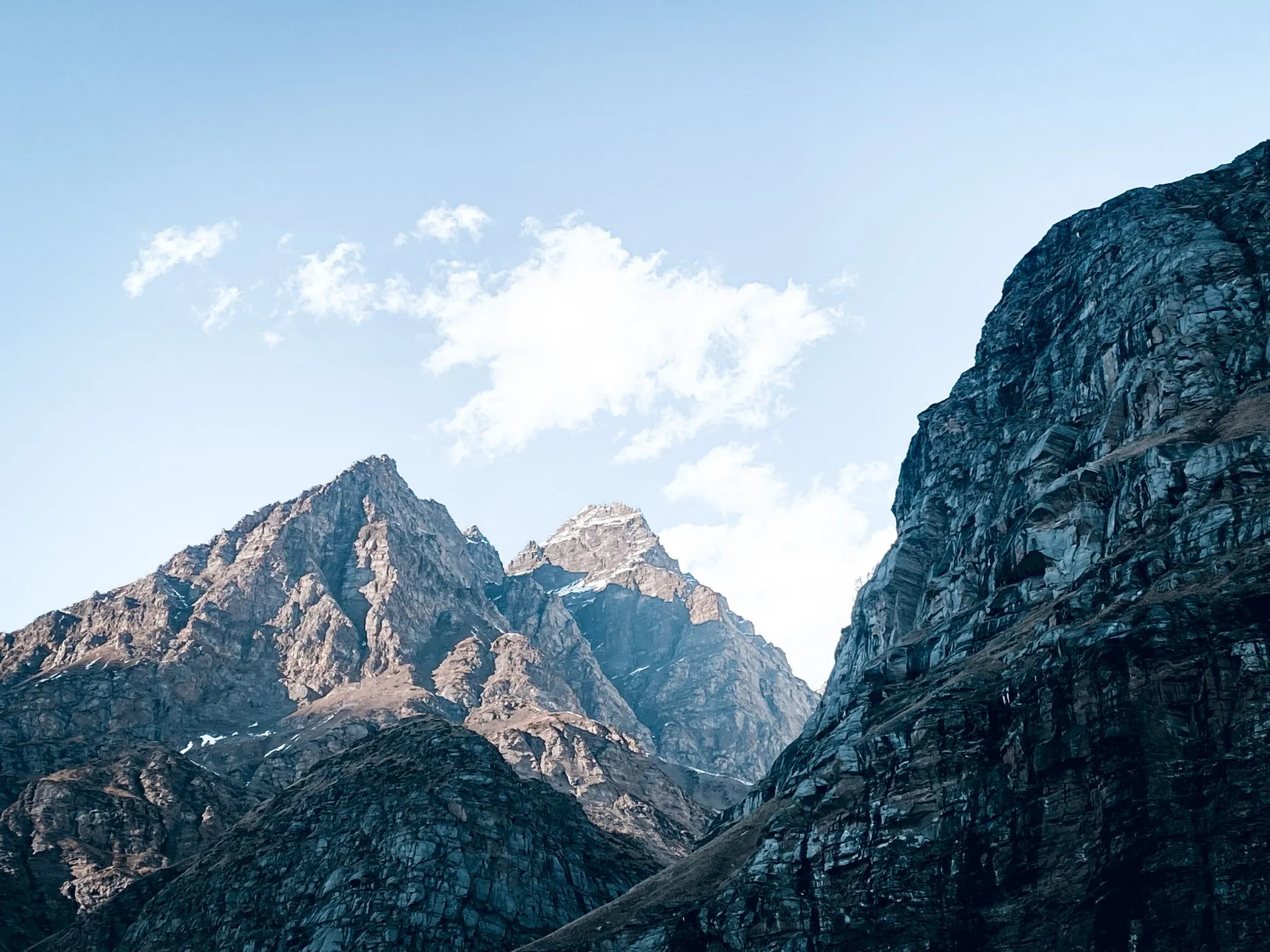
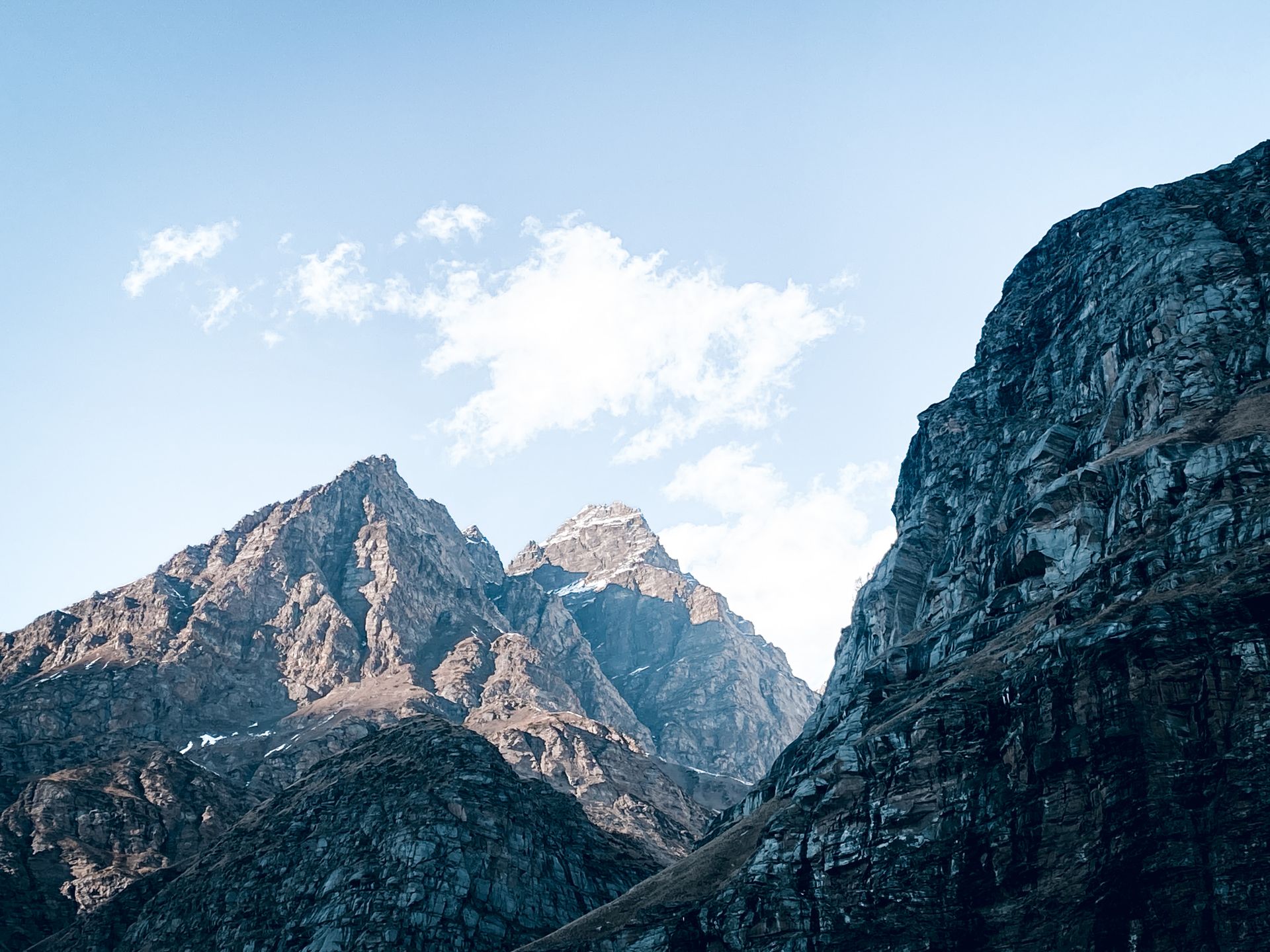
Exported with Pixilo at quality 80. Dimensions unchanged: 1920 × 1440 px. Drag the divider or use the arrow keys to compare. Quality settings are format-specific. Photo: Pexels.
Graphics: protect edges, text and transparency
Text and diagrams expose compression damage quickly: a colored fringe around a letter or a broken one-pixel line can matter more than a slight change in a landscape. The graphic below compares a 109.2 kB PNG with Pixilo’s JPG, WebP and AVIF exports at the same 960 × 640 pixels. The AVIF is only 6.4 kB, but that saving is useful only if the smallest text and lines remain clear enough for the job.
Switch formats and inspect the same letters and colored edges in the detail view. Then return to the full image to judge normal reading size. These are lossy conversion examples, not lossless WebP or AVIF tests. If a screenshot documents a price, an error message or a software setting, prioritize readable, accurate text over the smallest file. Keep the PNG when the alternatives fail that test.
Transparency is a separate requirement from sharpness: PNG, WebP and AVIF can store it; JPG cannot. For a transparent product image, try PNG to WebP and inspect its outline and shadow on both light and dark backgrounds. Before exporting JPG, choose an intentional solid background. The opaque graphic below does not test transparent edges.
For a logo that already exists as an SVG, keep the vector source available. Rasterizing it merely to use a compressor can remove the advantage of scaling it cleanly. Read the SVG and PNG guide to decide when to keep the vector format and when a PNG copy makes sense.
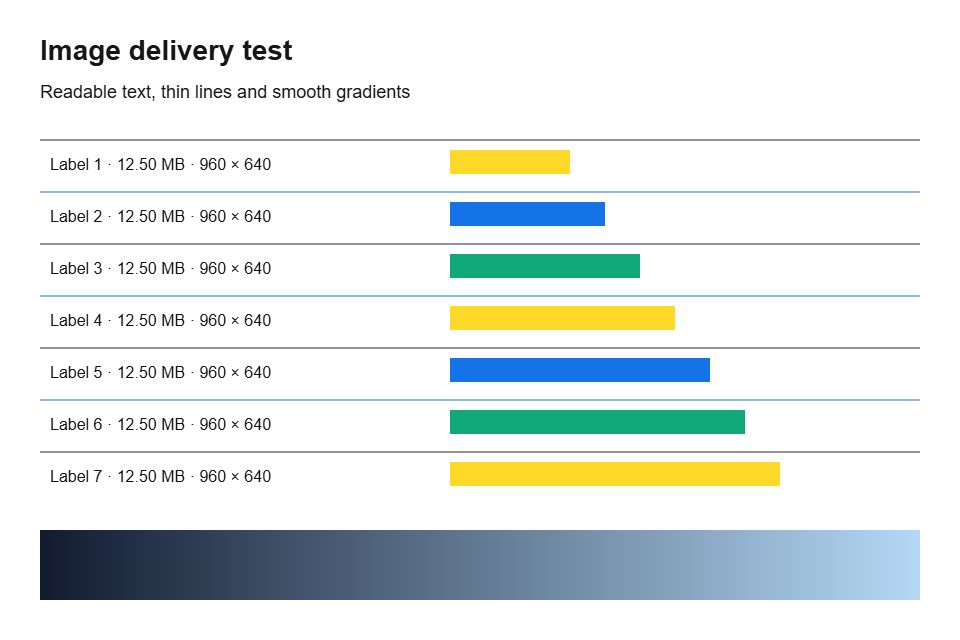
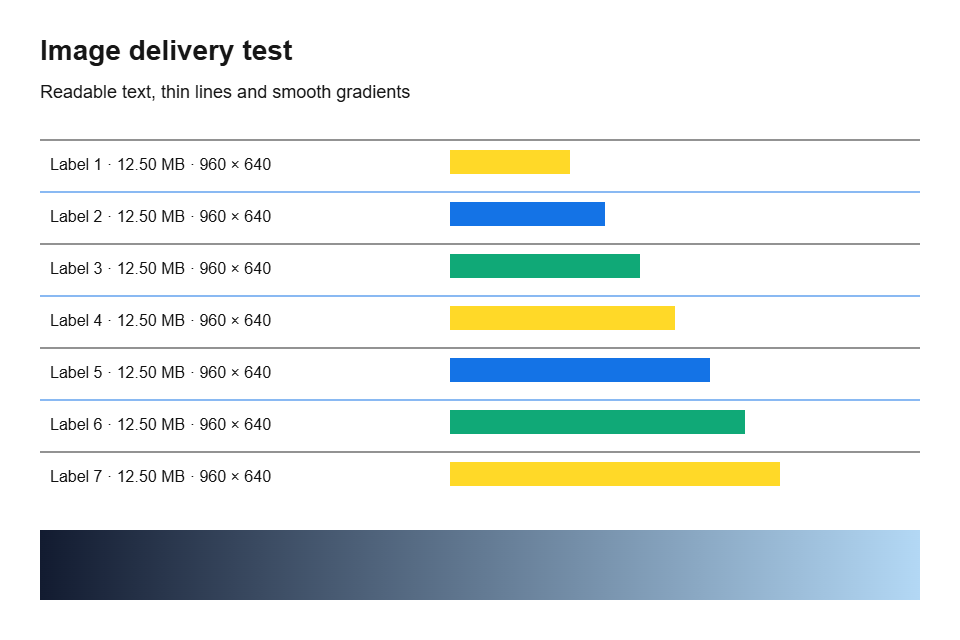
Exported with Pixilo at quality 80. Dimensions unchanged: 960 × 640 px. Drag the divider or use the arrow keys to compare. Quality settings are format-specific.
Choose dimensions before chasing the smallest format
Plan for the space an image actually occupies. For example, a photo displayed 600 CSS pixels wide might benefit from a 1200-pixel version on a high-pixel-density screen. That is an example to test, not a universal rule. Avoid enlarging a small original just to reach a target: more pixels cannot recreate missing detail.
Doubling both width and height creates four times as many pixels. File size will not necessarily quadruple, but the encoder has more image data to represent. First choose the crop and dimensions you need; then compare formats at those same dimensions so you can separate a resizing benefit from a format change.
A website can serve different sizes to different layouts through responsive image settings such as srcset and sizes. Use Resize image to prepare variants and follow the responsive image guide to understand delivery. Avoid one rigid file-size target for every image: a small card and a detailed product zoom serve different purposes.
Check delivery as well as the file
Reserve the image’s layout space so content does not jump when it arrives. Lazy loading can suit images lower down the page, but delaying the main visible hero image can make it appear later. Google’s LCP guidance recommends making the important image discoverable and avoiding lazy loading the LCP image.
If you need a fallback, configure it in your markup or CMS. With a picture element, the browser uses the first source matching its format support and other conditions; it does not compare all files and choose the smallest. Put your preferred tested format first and retain an appropriate JPG or PNG fallback. The web.dev picture guide explains source selection.
Check the image actually delivered on the published page. A CMS or image CDN may resize or re-encode your upload, so the downloaded Pixilo file may differ from what visitors receive. Pixilo prepares files; your website controls delivery. A smaller export alone cannot fix a late image request or slow server response.
A small checklist before publishing
- The destination accepts the format and the filename has the correct extension.
- The dimensions suit the intended layout.
- Text, faces and transparent edges remain acceptable.
- The new file is smaller, or the format change solves a real compatibility need.
- The page still works at narrow widths and the important image loads promptly.
- You have kept an original for future edits.
Choose your next step
Choose a tool based on what you need to change.
Create a WebP copyFollow the file-size workflow → ChatGPT
 Grok
 Google
 Perplexity
 Claude