Website images
How to Use AVIF Images on Your Website
Converting an image to AVIF is only the first step. After publishing, check that the page displays it correctly and the browser actually loads the new version.
A short publishing checklist
- Choose one image already used on a page and keep the original.
- Create an AVIF version and inspect its quality.
- Add the AVIF to your website using a method your publishing system supports.
- Check the published page on a phone and a computer.
- Use the browser’s network requests to confirm which image file loads.
The following sections explain what to check at each stage.
Check how your website handles AVIF
A publishing system may accept an AVIF file in its media library but handle it differently from JPG or PNG. Check both uploading the file and using it on a published page.
Try one image:
- Does the media library accept the file?
- Does the image appear in the page editor?
- Does it work on the published page?
- Are the required smaller image versions generated, if the system normally creates them?
An image optimization service or CDN may already deliver your images as AVIF. Check the current behavior before replacing files manually. A JPG in the media library does not by itself tell you which format visitors receive.
Prepare one image for the trial
Choose an image representative of your website. A product photograph, article header image or transparent graphic is a more useful starting point than an unrelated test image.
Use the converter that matches your source format:
Pixilo’s AVIF converters preserve the original pixel dimensions and use a fixed lossy compression setting. They create a single still image. Conversion does not preserve animation, the original HDR information or metadata.
Compare the downloaded AVIF with the original. Look especially at readable text, thin edges, gradients and any transparent areas. Check file size too: conversion does not always make the file smaller.
If the quality is insufficient or the file becomes larger, keep the existing version. Changing the format is not a goal in itself.
Add AVIF through your publishing system
If you use a page builder or content management system, add the AVIF to the media library and select it as the new image for that image element.
Keep the displayed size and crop unchanged during the trial. This lets you assess the format change without changing the page layout at the same time.
When replacing the image, check:
- the alternative text
- the aspect ratio and crop
- any caption and link
- the desktop and mobile layouts.
Changing the file extension in a URL does not convert the image. Publish an actual AVIF file or use a service that performs the conversion.
Offer an alternative format when needed
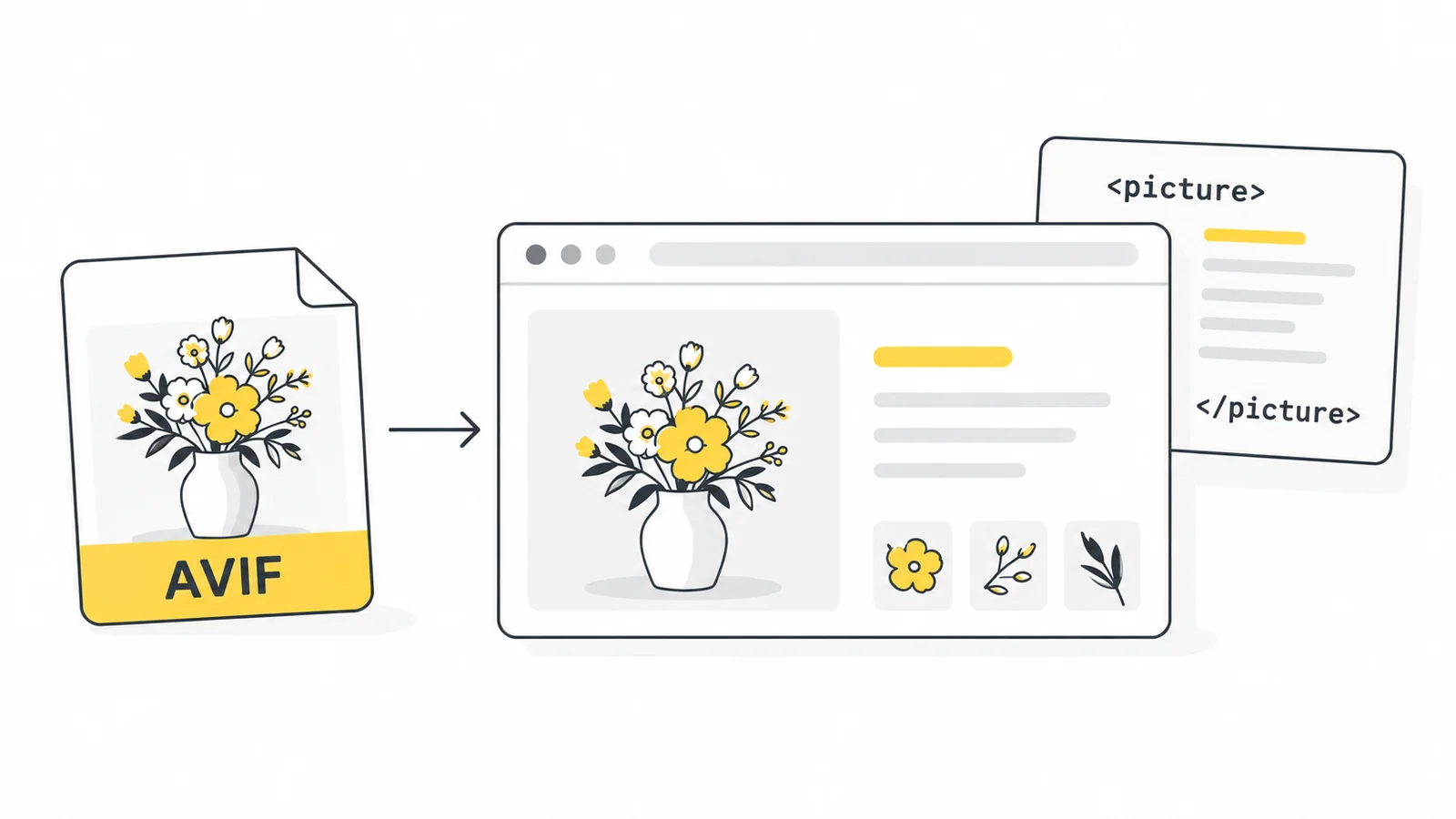
If you edit the HTML yourself, you can offer AVIF first and JPG as an alternative using a picture element.
In this example, both files show the same image at 1200 × 800 pixels. Replace the paths, dimensions and alternative text with values appropriate for your image.
<picture>
  <source srcset="/images/product.avif" type="image/avif">
  <img
    src="/images/product.jpg"
    width="1200"
    height="800"
    alt="Blue backpack viewed from the front">
</picture>
A browser that supports AVIF can select the AVIF version. If it does not support the declared format, this example uses the JPG. For a transparent image, choose a fallback that preserves transparency, such as PNG. See MDN’s picture documentation.
This alternative addresses format support. It does not automatically fix an incorrect AVIF URL or a broken file.
If your publishing system manages alternative formats automatically, use its own feature.
Confirm which image the browser loads
An image appearing on the page does not prove that AVIF is being used. The browser may load the old image, a smaller variant or a file produced by an optimization service.
In Chrome, you can check this using developer tools:
- Open the published page and developer tools.
- Select the Network tab and the Img filter.
- Enable Disable cache and reload with developer tools open.
- Open the request for the image you want to check.
- Check its URL and the response’s
Content-Type. AVIF usesimage/avif.
The extension is not the only clue: an optimization service can deliver AVIF from a URL ending in .jpg. The Network panel also helps you check the transferred file size. See Chrome’s guide to inspecting network activity.
If the page uses a separate mobile image or multiple sizes, check those requests too.
Check the published page before changing more images
Inspect the image where it is actually used. A media-library preview does not reveal the mobile crop, the effect of the page background or whether the correct variant loads.
Confirm that:
- the full image is visible or the crop is intentional
- text and important details remain clear enough
- transparency works against the page background
- the reserved image space and page layout remain correct
- the browser loads the expected file.
When comparing loading before and after the change, use the same page, viewport and test settings. One faster load does not establish a consistent improvement. A reduction in file size is easier to verify when the images have the same dimensions and acceptable quality.
If the AVIF image does not appear
First check whether the image’s direct URL opens in the browser. If it does not, check the file location and any error reported by the publishing system.
If the direct image works but the page shows the old version, check the image element’s URL, other image sizes and the website’s cache. Bypassing the browser cache does not clear the publishing system’s or CDN’s cache.
If the cause remains unclear, restore the working original in that image element and investigate AVIF support before the next trial.
Frequently asked questions
Should every website image be changed to AVIF?
No. Replace images where the result provides a useful reduction in file size and works in your publishing system at acceptable quality.
Is adding AVIF to the media library enough?
No. Select the image for use on the page as well. Check the published page’s network requests to see which file loads.
Does AVIF always need a fallback?
The need depends on your visitors’ browsers and how you publish images. An alternative format is useful when you want to support environments where AVIF does not work.
Why does the new AVIF not reduce the file loaded by the page?
The page may still use the old image or another version generated by your publishing system. The AVIF itself may also be larger. Check the actual request and compare files with the same pixel dimensions.
 ChatGPT
 Grok
 Google
 Perplexity
 Claude