Image compression
How to Compress Multiple Images at Once
Prepare an image batch, test representative files and compress up to 20 images with Pixilo. Review quality, handle exceptions and verify the ZIP download.
Compress and download the batch
- Select the prepared copies. Open the compressor and choose or drop up to 20 JPG, PNG or WebP images, no larger than 25 MB each.
- Wait for processing. Files are handled one at a time on your device. Review the status of every row rather than assuming selection means completion.
- Inspect the results. Open each preview and compare the original and output sizes. Check difficult details in the downloaded copy.
- Resolve exceptions. Separate files with errors or unacceptable detail from the successful set. Try a smaller batch if your device struggles.
- Download and verify. Save individual results or use the ZIP download. Extract the archive into your delivery folder and check its contents before uploading.
The list holds up to 20 images in total. If you have more, finish and download one group before clearing the list for the next. Individual images must also stay within 8000 pixels per side and 32 million pixels overall. A file below 25 MB can still exceed those pixel limits.
Keep the page open until processing and downloads are complete. Closing or refreshing it can discard the working list. Local processing means your images are not uploaded to Pixilo's server; uploading the saved results to another service is a separate step.
When processing finishes, remove a failed file or an unsuitable result with the × button on its row. Retry failed files separately and check any replacement before downloading. The ZIP includes the completed files still in the list; it does not fix errors or exclude poor quality for you.
Prepare a batch with a clear purpose
A folder of images is not necessarily one useful batch. Group files by destination: article illustrations, product photographs or email attachments. A small card and a detailed product zoom image need different preparation even if both are JPG files.
Create separate folders for originals and delivery copies. Give files meaningful names before selecting them, especially if several downloads are called image.jpg. Names such as blue-mug-front.jpg and blue-mug-handle.jpg make the results easier to match to their source.
Check the destination's format and dimension requirements. Pixilo's main compressor reduces file size without resizing or changing formats. If your source is far larger than the space it will fill, prepare suitable dimensions with the resizer first. For the general decision process, read how to reduce image file size.
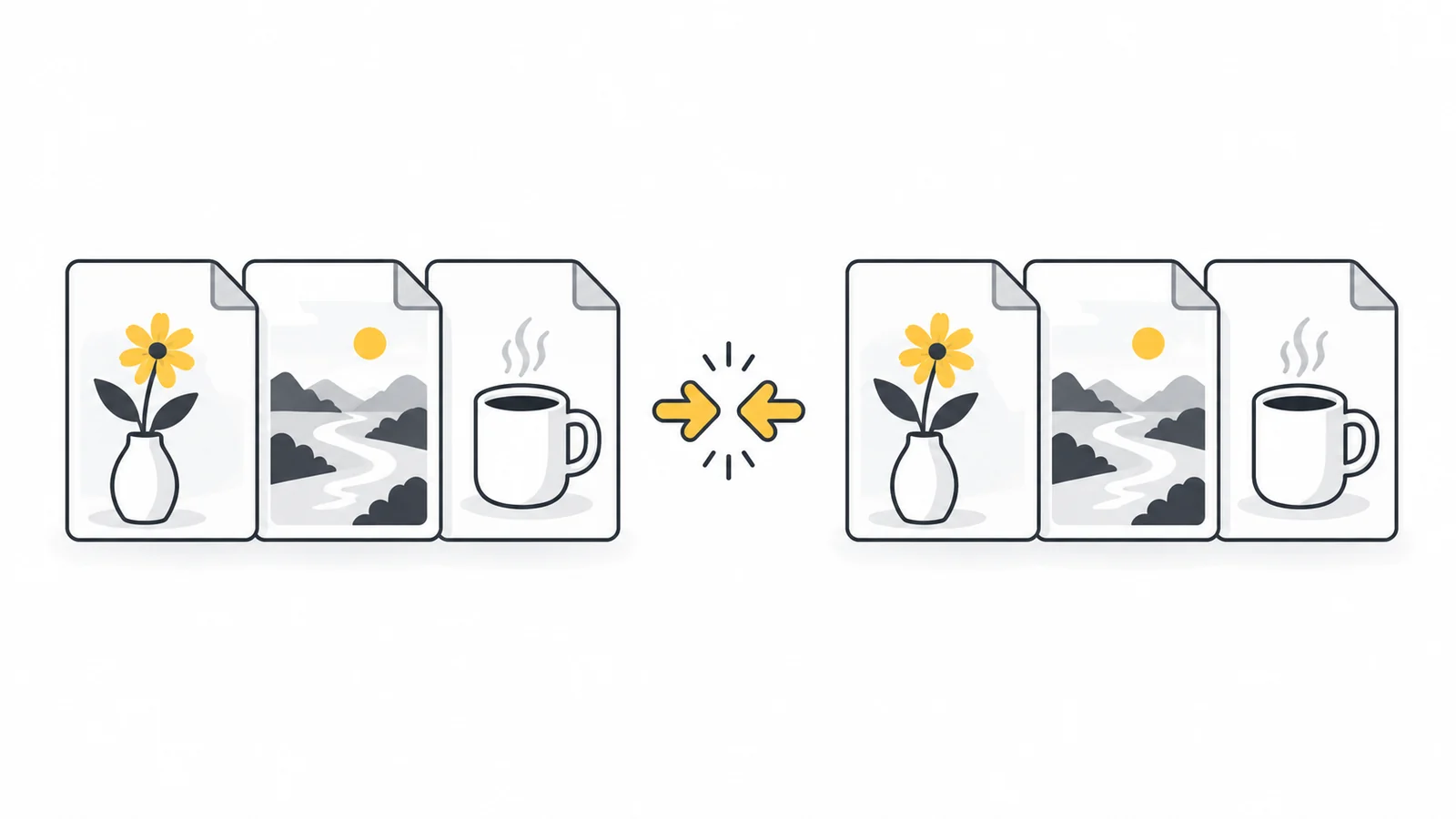
Test representative images before the full set
Choose a few files that reveal different risks: a detailed photograph, a screenshot with small lettering and a transparent graphic. Testing only a plain background tells you little about how product labels or fine texture will survive.
Inspect the preview and the downloaded file at the size the recipient will use. Look at faces, labels, fabric, thin lines and transparent edges. A large percentage saving is not useful if the important information is no longer readable.
JPG and WebP are recompressed with a moderate lossy setting. PNG is optimized losslessly without reducing its colors. These operations are different, so do not expect the same reduction across a mixed batch. Google's WebP compression documentation explains why lossless and lossy compression are distinct approaches; this tool's behavior depends on its actual settings.
Understand what each result means
| Result | Meaning | Your next check |
|---|---|---|
| Smaller output | The compressed file saves bytes | Inspect quality before using it |
| Original kept | The candidate was not smaller, or the original was retained to protect animation | Decide whether the existing file suits its destination |
| Processing error | No usable result was created for that row | Check the file and retry separately |
| File still above an upload limit | Automatic compression was not enough | Use a separate target-size workflow |
“Original kept” is not a promise that the image needs no further preparation. An already compressed 4000-pixel photograph might still be excessive for a small card. Resize a separate copy if the destination allows it. Original files returned unchanged also retain their embedded metadata.
The ZIP contains completed results; a failed row does not become a successful file just because you download the archive. Count the extracted files and compare them with your expected list. The tool distinguishes duplicate names, but descriptive source names still make checking easier.
Example: prepare twelve images for an article
Suppose you have eight photographs, three screenshots and one transparent diagram. First prepare dimensions appropriate for the article. Then test a detailed photograph, the screenshot with the smallest text and the diagram with the finest lines.
If those results are suitable, process the prepared set and review all twelve rows. Keep any screenshot whose text becomes difficult to read out of the approved set, even if it saves more bytes than the others. Handle it separately rather than using one acceptance rule for every type of image.
Download the ZIP, extract it and open the files from that folder. Check that there are twelve usable results, or document the exceptions you are handling separately. Upload the approved copies, then verify that the published article uses those files.
Handle strict limits and privacy separately
The main compressor has no target-size setting or quality slider. If every file must be below a particular limit, use Compress to a File Size for each exception. That tool can reduce dimensions only if you allow it. Check minimum dimension rules as well as the byte limit.
A ZIP groups files for convenient downloading. It does not replace image compression or guarantee a substantial further reduction for already compressed photos. Extract it before using a destination that expects individual image files.
Do not treat compression as a verified privacy scrub. If metadata matters, use the metadata removal tool and inspect the final sharing copy. Visible names, faces and addresses still need a separate review.
Frequently asked questions
Can one batch contain JPG, PNG and WebP?
Yes. The main compressor keeps each image's format and pixel dimensions. Review the results by image type rather than expecting identical savings.
Will all images become the same file size?
No. Content, source settings and format affect the result. Automatic batch compression does not enforce an identical size for every image.
Should I compress the downloaded batch again?
Prefer returning to the originals for a new export. Repeated lossy processing can accumulate visible damage without giving useful control.
Test a few, then process the set
Keep your originals, inspect representative results and verify the downloaded files before publishing.
Compress a batch of imagesUnderstand the quality tradeoffs → ChatGPT
 Grok
 Google
 Perplexity
 Claude