Image formats
WebP vs JPG: Which Should You Use?
Choose between WebP and JPG for websites, uploads and sharing. Compare quality, transparency and compatibility with a practical export workflow.
What changes between WebP and JPG?
JPG and JPEG are names for the same image format. WebP is a different format with both lossy and lossless compression modes and support for transparency. JPEG is widely supported for photographic images but does not retain a transparent background. These are format capabilities; a particular converter may offer only some of them. See Google’s WebP documentation for the format’s capabilities.
| Your task | Starting choice | Check before sending |
|---|---|---|
| Photograph on a website | WebP | File size and detail at the displayed dimensions |
| Upload form requesting JPEG | JPG | Accepted extension, dimensions and upload limit |
| Transparent product cutout | WebP or PNG | Edges against both light and dark backgrounds |
| Editable master for later exports | Keep the original | Do not replace it with a copy for publication |
When should you use WebP?
For a website you control, export a WebP version from the original photograph and compare it with the existing JPG. Look at hair, foliage, fabric and lettering. A smaller export is useful only if it still looks right where you plan to use it. A thumbnail can tolerate choices that look poor in a full-width portfolio image.
Use JPG to WebP for this comparison. Keep both versions until you have checked the actual page. Do not assume that setting two different encoders to “80” produces equivalent quality: treat each control as a starting point for visual inspection.
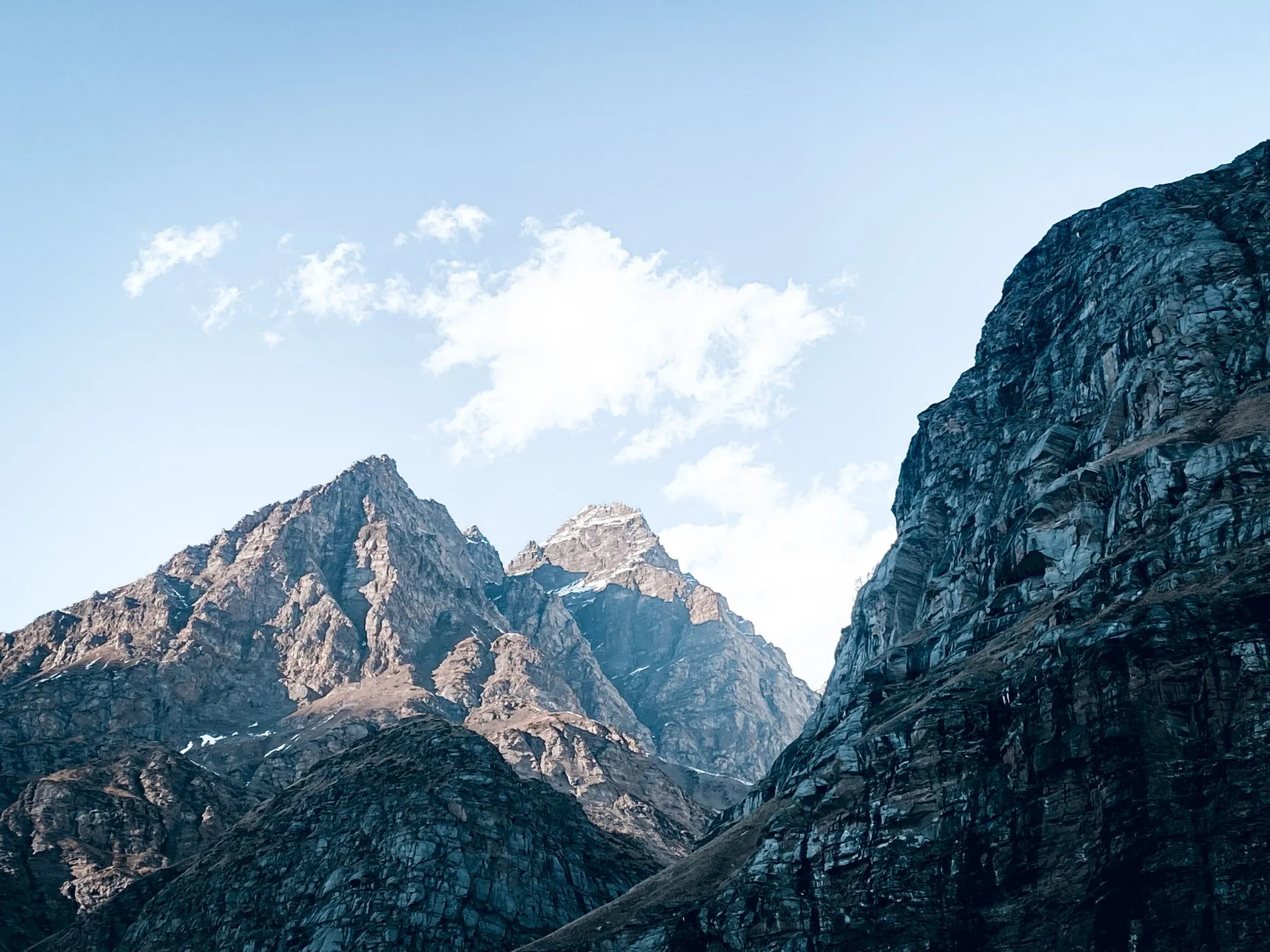
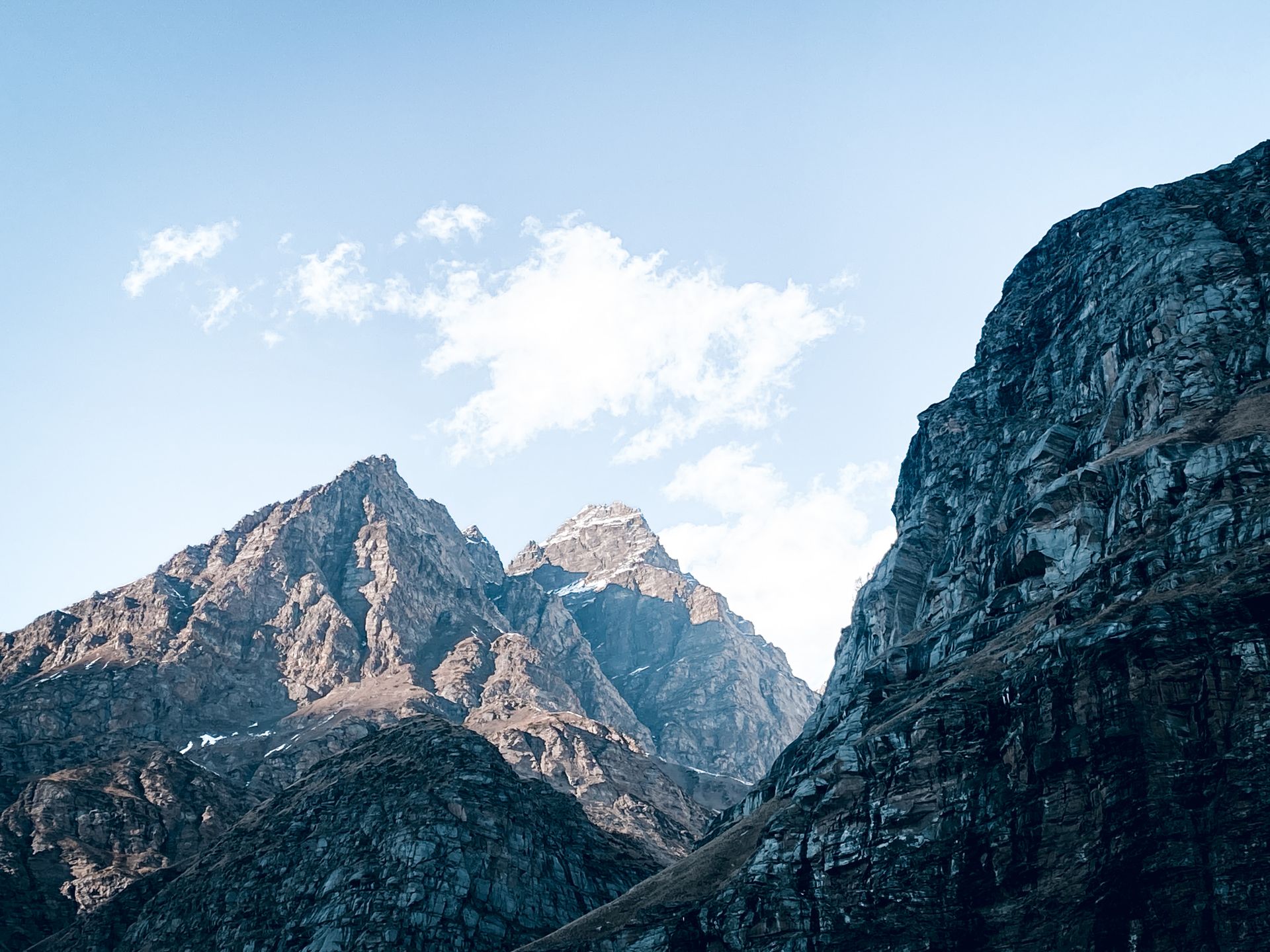
Exported with Pixilo at quality 80. Dimensions unchanged: 1920 × 1440 px. Drag the divider or use the arrow keys to compare. Photo: Pexels.
When is JPG the better choice?
Choose JPG when compatibility is the immediate problem: a submission form rejects WebP, an older editor cannot open it, or a client specifically asks for JPEG. The goal here is a usable file, even if the resulting JPG is larger. Use WebP to JPG and open the downloaded file in the destination application before deleting anything.
If the image has transparent areas, decide on a background first. A white product cutout that looks correct on a white page may look wrong against a dark slide. Use the background color tool when you need to choose a solid background deliberately.
Does conversion reduce image quality?
Yes, converting to a lossy format can change detail. A small compression difference may be invisible in a thumbnail but noticeable in a large image. Compare the result at its actual display size, especially small text and textured areas.
In Pixilo, the JPG/WebP converters use a quality slider and browser encoding. They are not a promise of lossless conversion. Images larger than 4000 pixels on either side are resized proportionally so the longest side is 4000 pixels. A large original may therefore change in both dimensions and encoding.
Here, 100% means viewing the image at its actual pixel size in an image viewer: one image pixel is shown as one screen pixel. The browser’s page zoom is a separate setting.
A practical comparison workflow
- Choose one representative photo, including fine detail or text if those matter to your project.
- Decide its displayed dimensions and whether you need a larger version for high-pixel-density screens.
- Export from the original, then inspect at normal viewing size and at 100% zoom.
- Compare downloaded file sizes. Keep the original if the new file is larger without a useful compatibility benefit.
- Check the actual destination: website, email attachment or upload form.
Pixilo processes the selected image locally in your browser rather than uploading it for conversion. Keep the original separately, especially for print, archival work or future edits. For a broader decision, read the website image format guide.
Text and thin lines: JPG vs WebP
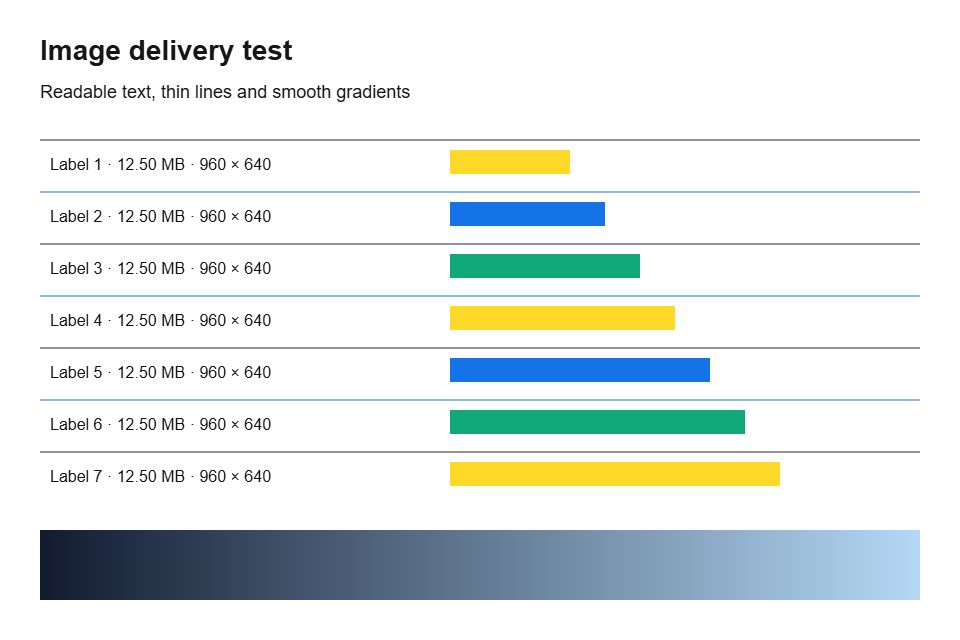
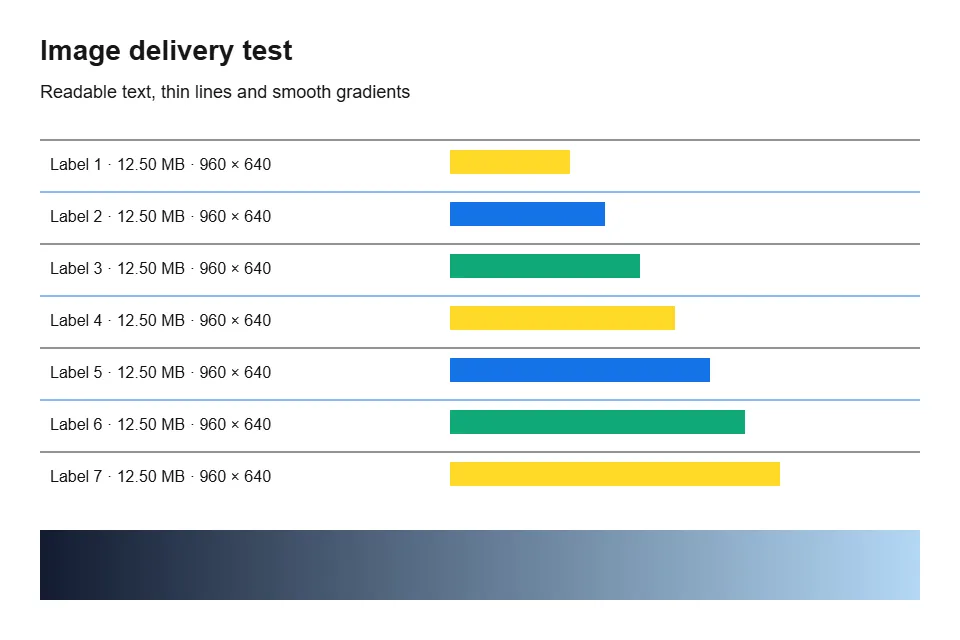
These JPG and WebP files were exported from the same PNG test graphic with Pixilo on 2026-10-01, at quality 80 and 960 × 640 pixels. The enlarged details show the same area: compare letter edges and fine lines. The same quality number does not mean equal visual quality.
Make a copy for your destination
Convert one image, compare it, and keep the version that fits your task.
Convert JPG to WebPNeed JPG instead? Convert WebP to JPG → ChatGPT
 Grok
 Google
 Perplexity
 Claude