Publishing workflows
How to Create and Add a Favicon to Your Website
Create a clear favicon from your logo, choose ICO and PNG sizes, and add it to HTML or WordPress. Includes code, Google Search guidance and troubleshooting.
Choose the route for your website: WordPress users can upload a square image through the Site Icon setting; other website builders usually have their own site-icon field. For a site whose HTML you edit, create the icon files and follow the HTML instructions. You can skip the ZIP and manifest when your editor creates icons for you.
What is a favicon, and where does it appear?
A favicon is the small icon that helps someone recognize your website in a browser tab or bookmark. A related, larger icon can represent the website when it is saved to a phone's home screen. The same brand may therefore need several image sizes, even when they all start from one design.
Think of a reader with twelve tabs open. Your full business name may no longer fit beside the page title, but a distinctive symbol can still identify the tab. That is the job to design for: recognition in very little space.
A favicon is different from the logo in your website header and from the large preview image used when a link is shared. Changing one does not automatically change the others. A wide header logo may work beautifully on a page and become unreadable when squeezed into a tiny square.
Choose your installation route first. You can then prepare only the files your site needs, instead of treating every item in a download pack as a requirement.
| Your setup | What to use | Where to start |
|---|---|---|
| Custom HTML or a static website | ICO and PNG browser icons; an Apple icon if you want home-screen artwork | Add the files and head tags |
| WordPress | One square PNG at least 512 × 512 pixels | Use the Site Icon setting |
| Another website builder | The image format and dimensions accepted by its site icon field | Check its settings before uploading a ZIP or editing code |
| A site with an existing app manifest | The browser icons plus the larger icons your app needs | Update the existing manifest |
For a builder with its own site icon setting, start there. The manual HTML instructions are for sites where you control the shared page head; pasting those tags into a visible content block is not the same installation.
Choose a design that works at 16 pixels
Use the most recognizable part of your brand rather than its entire logo. A strong initial, a simple symbol or the main shape of a mascot often works better than a full name with a tagline. Remove details that only make sense when the image is large.
For example, imagine a bakery logo with a loaf, wheat stems and the words “River Street Bakery.” A favicon could keep the loaf silhouette and one distinctive cut across the top. Trying to preserve every stem and the full name would turn the design into a cluster of tiny marks.
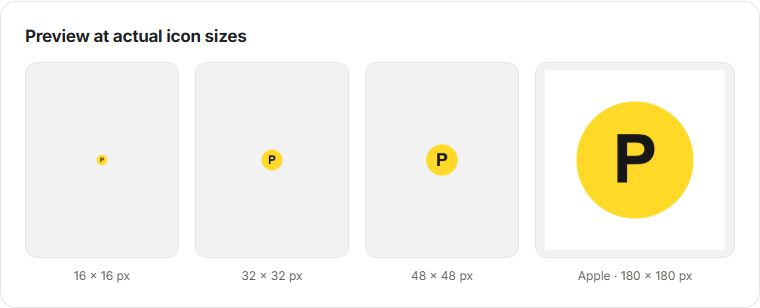
Preview at the actual size. A 512-pixel drawing shown large on your screen does not tell you whether a narrow gap survives at 16 pixels. Check the small version without zooming in, then ask whether you can identify its main shape in a second or two.
- Keep one main idea. Avoid several competing objects inside the square.
- Use clear edges. Thin outlines and tiny cutouts can disappear when reduced.
- Leave enough contrast. A pale symbol on a transparent background can vanish in a light browser interface.
- Make text optional. One bold letter may work; a whole company name usually will not.
- Check the silhouette. If the icon becomes unrecognizable without its small details, simplify the design.
You can use a simpler version of your logo for small sizes. It does not have to be a miniature copy of the full logo. If you need carefully adjusted shapes at 16 pixels, draw that version separately; a generator can resize the supplied artwork, but cannot decide which brand details to remove.

Prepare the source image without losing detail
Use a clean export from the original artwork where possible. A square PNG of at least 512 × 512 pixels is a practical starting point for this workflow because the largest generated icon is 512 pixels. This is a source recommendation, not a claim that browser tabs display a 512-pixel image.
If your original is a vector logo, export a square PNG from your design application. Pixilo's generator accepts JPG, PNG and WebP rather than SVG. Keep the original vector file so you can revise the artwork later.
Do not enlarge a blurry 32-pixel icon to 512 pixels and expect new detail. A larger canvas does not restore missing edges. Use the best original you have, or simplify and redraw the symbol. The generator warns when either source dimension is below 512 pixels because the larger outputs will need enlargement.
Choose a square composition before worrying about file size. A rectangular logo can be fitted into a square without stretching, but may leave substantial empty space. A center crop fills the square by cutting off part of the image. Neither option automatically produces a good result for a wide wordmark.
If the subject is off-center, use the image cropper to choose the crop yourself first. The favicon generator's square crop is centered; it does not let you move the crop toward a face or symbol near an edge.
Try PNG for transparent artwork and crisp graphic edges. If you use JPG, inspect the small preview for fuzzy edges or speckles around the symbol. A new file format cannot repair detail already lost in the source. Our JPG vs PNG guide explains which format suits different kinds of artwork.
Favicon sizes and formats: which files do you need?
You do not need to upload a separate icon for every possible device size. Start with the files required by your website setup. A custom HTML site can use a small group of linked icons; a content management system may create its own versions from a single upload.
| File | Dimensions | Use |
|---|---|---|
favicon.ico | 16, 32 and 48 px in one file | A browser favicon with several small sizes |
favicon-32x32.png | 32 × 32 px | A separate small PNG icon |
favicon-48x48.png | 48 × 48 px | A separate 48-pixel PNG icon |
favicon-96x96.png | 96 × 96 px | A larger PNG linked as a site favicon |
apple-touch-icon.png | 180 × 180 px | An Apple home-screen icon |
icon-192.png and icon-512.png | 192 × 192 and 512 × 512 px | Larger icons referenced by the included manifest |
site.webmanifest | Not an image | A small JSON file listing the two larger icons |
favicon-installation.txt | Not an image | The HTML tags and installation notes |
ICO is a container that can hold several icon images. Pixilo creates a real ICO containing 16-, 32- and 48-pixel images; renaming a PNG to .ico would not create that structure. PNG stores one image per file and is easy to inspect separately.
The 180-pixel Apple icon has a different role from the browser favicon. Apple documents the apple-touch-icon link for home-screen artwork in its web application guidance. A tiny browser icon is not an ideal source for that larger placement.
The ZIP contains nine files. The separate 32- and 48-pixel PNGs are alternatives for upload fields or configurations that request those sizes; you do not have to link them alongside the ICO and 96-pixel PNG. The installation notes are for you to read, not a file that visitors need to download from your website.
Choose transparency and spacing deliberately
Transparent browser icons can look clean, but their background is determined by the surrounding interface. Test a dark symbol against a dark background and a pale symbol against a light one. If either becomes hard to recognize, use a contrasting outline or a deliberate solid background.
In Pixilo, the transparency option applies to the browser ICO and the 32-, 48- and 96-pixel PNGs. The Apple, 192-pixel and 512-pixel icons always use the selected solid background. Changing that color therefore affects the larger icons even when transparent browser icons remain selected.
Transparency does not erase an existing background. If your uploaded image already has white pixels around the logo, those pixels remain white. Start with an image that actually has a transparent background if you want the surrounding space to be transparent.
The spacing control leaves room around the artwork. Its percentage applies on each side: 10% leaves an 80%-wide area for a square image, while 20% leaves 60%. At 16 pixels, that second setting gives the artwork only about 10 pixels across. More spacing can make a cramped icon clearer, but too much can make it difficult to see.
Check the margins already inside your source image. If the logo occupies only the middle half of a PNG, setting extra spacing to zero still preserves that empty outer area. Crop away unnecessary margins first, while keeping intentional room around the symbol. Then compare spacing values in the generator.
Start with the default spacing and compare a smaller and larger value. Judge the 16-pixel preview first, then check the larger icon. The percentage controls the image canvas, not just the visible colored shape inside it.
How to add a favicon in WordPress
Use WordPress's built-in Site Icon feature. Its favicon documentation recommends a square PNG at least 512 × 512 pixels. In WordPress 6.5 and later, open Settings → General, choose the Site Icon image and save the setting. Earlier versions may place it under Appearance → Customize → Site Identity.
With a supporting block-theme setup, the Site Editor can also expose the icon under Appearance → Editor → Identity. Check the Site Editor Identity documentation if that matches your interface.
Pixilo's icon-512.png is the generated file to choose for this route. It has a solid background, so review that color before upload. You can also use a suitable original square PNG if you prefer to preserve its transparency.
- Select the prepared PNG in the Site Icon field.
- Save the setting, then open the public homepage and a second page.
- Check the browser tab. If another component still supplies an old icon, follow the checks in the troubleshooting section.
WordPress creates the icon references for you. The ZIP is not a theme or plugin, and the HTML tags do not belong in a post or page content block.
A Site Logo and a Site Icon are separate settings. Replacing the wide logo visible in your page header is not necessarily the same as changing the small tab icon. Choose the icon deliberately and save the setting that controls it.
Create a favicon from your logo with Pixilo
- Select one image. Open the favicon generator and choose a JPG, PNG or WebP of up to 25 MB. The source must also stay within 8000 pixels per side and 32 million pixels in total.
- Choose the fit. Fit keeps the entire image and its proportions. Square crop takes a centered square from the source. Check that nothing important is cut off.
- Adjust the spacing and background. Compare the actual-size browser previews and the Apple preview. Choose whether the browser icons should be transparent.
- Download what you need. Use the ZIP button for the complete pack, or download an individual file for a specific upload field.
- Install and test. Add the files through your website's settings or use the HTML instructions below. Check the published site, not only the generator preview.
Adjust the options until the previews look right, then download. No separate save button is needed: downloads use your latest choices. A file you have already saved to your device does not change when you adjust the preview, so download again if you revise the design afterward.
Your source and generated files stay on your device during this process. There is no image upload to Pixilo's server. The selected image and settings are held in the open page, so download the result before closing or refreshing it.
If you choose “another image,” the source selector returns. The current options remain selected, so review the fit, spacing and background for the new artwork rather than assuming the previous choices suit it.
Worked example: turn a wide logo into a useful icon
Suppose a bakery has a 1200 × 600 logo containing a loaf symbol and a long business name.
- Separate the symbol. Export the loaf artwork as a square 512 × 512 PNG from the original design. Avoid taking a tiny screenshot of the logo.
- Remove unnecessary margins. Check whether the PNG already has a large empty border. Keep the loaf's edges intact, but let the symbol occupy enough of the square to remain visible.
- Compare small previews. Start with Fit and the default spacing. If the cut across the loaf disappears at 16 pixels, simplify that detail in the original artwork rather than enlarging a blurry copy.
- Test the background. If the loaf's dark outline disappears against a dark surface, try a solid contrasting background for the browser icons. Check the Apple preview too.
- Download for the chosen setup. For an HTML site needing browser and Apple icons, use the ICO, 96-pixel PNG and Apple icon. For WordPress, use the 512-pixel PNG instead.
The result should be recognizable before it is installed. If it only looks good in the large preview, return to the artwork; a correct file extension will not solve a crowded design.
How to add a favicon to an HTML website
Extract the ZIP and place the selected icons in the folder your website publishes. With the root-level paths below, the ICO must be available at an address such as https://example.com/favicon.ico. Keep the files in a source or public-assets location that your build copies into its output; a file added only to a generated output folder may disappear on the next build.
Add the first two tags below inside the page's <head> for browser icons. Include the third if you also want an Apple home-screen icon. If your pages share a head template, add the tags there so the homepage and other pages use the same references.
<link rel="icon" href="/favicon.ico" sizes="16x16 32x32 48x48">
<link rel="icon" type="image/png" href="/favicon-96x96.png" sizes="96x96">
<link rel="apple-touch-icon" href="/apple-touch-icon.png" sizes="180x180">
The href gives the file location, while sizes describes its image dimensions. Browser choice can depend on the available format, size and other declarations; do not assume the first icon tag always wins. See the MDN reference for rel="icon".
If you keep the files in an /icons/ folder, update all three paths: /icons/favicon.ico, /icons/favicon-96x96.png and /icons/apple-touch-icon.png. The file location and its link must agree; moving an image without changing its reference leaves a broken link.
A path beginning with / starts at the domain root. If your site is published under a subdirectory such as /portfolio/, use the correct public paths for that deployment. Open each URL directly after publishing instead of assuming the folder layout in your editor matches the website.
Before adding the tags, look for existing favicon and manifest declarations in the shared head. Replace obsolete references where appropriate. Leaving a theme's old favicon alongside your new one can make it difficult to tell which file the browser is choosing.
Optional: add or update the web app manifest
Skip this section if you only need browser icons. A manifest is separate from the favicon link tags and is not required for a tab icon to appear.
A web app manifest is a JSON file used to describe an app, including its icons. Pixilo's site.webmanifest contains only icon entries. If you already have a manifest, merge the new icons into it rather than replacing settings such as the app name, start URL and display mode. The web.dev manifest guide explains these fields.
{
  "icons": [
    {
      "src": "/icon-192.png",
      "sizes": "192x192",
      "type": "image/png",
      "purpose": "any"
    },
    {
      "src": "/icon-512.png",
      "sizes": "512x512",
      "type": "image/png",
      "purpose": "any"
    }
  ]
}
If you use this new icon-only manifest, add the following reference inside the shared page head. If the site already links to another manifest, update that file instead of adding a competing reference.
<link rel="manifest" href="/site.webmanifest">If you publish the manifest inside /icons/, its link becomes href="/icons/site.webmanifest". Change the JSON image paths to /icons/icon-192.png and /icons/icon-512.png as well: the leading slash in the generated paths points to the domain root, not the manifest's folder.
The generated icons use purpose: "any". They are not maskable icons, which need artwork arranged so important details survive when a device crops them to a circle or another shape. A solid background alone does not prepare an icon for that cropping. Do not change the purpose to maskable without preparing and testing suitable artwork. The MDN icon-purpose reference explains the distinction.
This file still contains only icons. It does not provide a complete app configuration or make the website installable by itself.
What a favicon does for Google Search
A recognizable favicon can help someone identify your site in a search result. Treat it as a branding and usability detail, rather than a shortcut to better rankings or a guarantee of more clicks.
Google's favicon guidelines require a square image at least 8 × 8 pixels and recommend a size larger than 48 × 48. The pack's 96-pixel PNG is a practical choice. Link the favicon from your homepage, keep its URL stable and allow Googlebot to crawl the homepage and Googlebot-Image to crawl the icon.
Google uses one favicon per hostname, such as example.com; a section at example.com/blog/ does not get a separate search icon. Meeting the guidelines does not guarantee display. Updates require recrawling and processing, which Google says can take days to weeks. Search Console's homepage indexing request does not force an immediate update.
If the new icon works in your browser but an old one remains in Search, verify the public files and homepage tags first. Repeatedly redesigning a working icon while waiting makes it harder to know which version has been processed.
Why is the favicon missing or still showing the old image?
Separate an installation problem from a stored old copy. If the new icon URL does not work directly, refreshing the page cannot fix it. If the URL shows the correct icon but the browser tab does not, investigate the declarations and cache next.
| Symptom | What to check | Next step |
|---|---|---|
| The icon URL returns a missing page | The published location and exact filename | Upload the file or correct its path, including letter case |
| The URL opens a web page instead of an image | A routing fallback or redirect | Make sure the icon path serves the actual image |
| The URL shows the new icon, but the tab shows the old one | Old link tags, browser cache or cached site output | Inspect the published head and test in a fresh browser session |
| The phone shortcut still shows an old icon | The Apple icon or manifest references | Verify those files, then remove and add the shortcut again |
| The favicon is tiny or hard to recognize | Excess spacing, a wide logo or low contrast | Compare the 16-pixel preview and simplify the source |
| Google still shows a previous icon | The homepage reference, crawl access and time since publication | Fix an actual access problem, then allow time for processing |
Start by opening the exact icon URL in a new tab. It should show the image, not the homepage, a login screen or a missing-page message. For a closer check, open the browser's developer tools, select Network and reload the page. Inspect the icon request: a successful status such as 200 is not enough if the response is HTML rather than an image.
Check the actual published head, particularly on the homepage and a deeper page. A template edit may not have reached the build output, or another component may still add an old icon. Use the file names and paths you installed to trace the references.
Browser favicons can be cached independently of the page. Try closing and reopening the tab, then compare in a fresh browser profile or another browser. A normal refresh may not replace the stored icon immediately. These checks help isolate a local cache issue; they do not guarantee that every browser or search result updates at once.
If the website uses a CDN or service worker, check whether it still serves an old response for the icon or page. Update the relevant cached content through your hosting or app workflow. Avoid changing several unrelated settings at once: make one correction, verify the response, and continue only if the problem remains.
Check these details before you finish
- The design is recognizable at 16 and 32 pixels without zooming in.
- Edges and colors remain clear against both light and dark surroundings.
- The downloaded files reflect your final fit, spacing and background choices.
- Each linked icon URL opens the correct public file after deployment.
- The shared page head contains the intended references rather than obsolete duplicates.
- The Apple icon and any manifest entries point to the files you actually published.
- An existing app manifest has kept its other settings.
- The homepage and favicon are crawlable if you want eligibility for Google's search favicon.
Keep the original artwork and the final downloaded pack together. Write down where the icon is configured: the shared HTML template, the WordPress Site Icon setting or your builder's equivalent. That makes the next rebrand easier than searching through several competing plugins and old files.
Frequently asked questions
What is the best favicon size?
Use clear square artwork large enough for your intended outputs. A 512 × 512 source covers the largest file in this pack; it is not a requirement for a tiny browser tab alone. The icon-size table lists the generated dimensions and their uses.
Do I need both ICO and PNG?
Not for every website setup. The Pixilo HTML example provides an ICO with several small images and a larger PNG, while a CMS may accept one source and generate its own versions. Follow the requirements of the setting you use rather than uploading every file merely because it is available.
Can a favicon have a transparent background?
Yes, the generated browser icons can preserve transparency. Check that the symbol remains visible against different surroundings. The generated home-screen icons use the chosen solid background, and the transparency setting does not remove a background already present in your source image.
Why does my logo look blurry as a favicon?
The source may be blurry, or the artwork may contain more detail than a tiny icon can show. Enlarging the file does not fix either problem. Use a clear original, simplify fine detail and compare the actual-size previews before adjusting spacing.
Should I upload the ZIP directly to WordPress?
No. Extract it and use the appropriate square PNG, such as icon-512.png, in the Site Icon setting. The ZIP is a collection of files and instructions, not a WordPress theme or plugin.
Does adding a favicon improve SEO?
It helps present a consistent, recognizable site identity. Do not assume it produces a ranking increase. For search display, meet the linked Google requirements and allow time for processing; eligibility does not guarantee that the icon will appear.
Make the small version recognizable first
Choose a simple symbol, check the smallest previews and download the files your website needs. Install them through one clear configuration, then verify the public URLs and browser result. A readable icon with a working installation is more useful than a large pack of files that your site never references.
Create your faviconPrepare a custom crop → ChatGPT
 Grok
 Google
 Perplexity
 Claude