Website images
Why Is My Image Not Showing on My Website? Fix Broken Images
Find out why an image is missing from your website. Follow checks for broken links, access, mobile versions and page settings, then verify the repair.
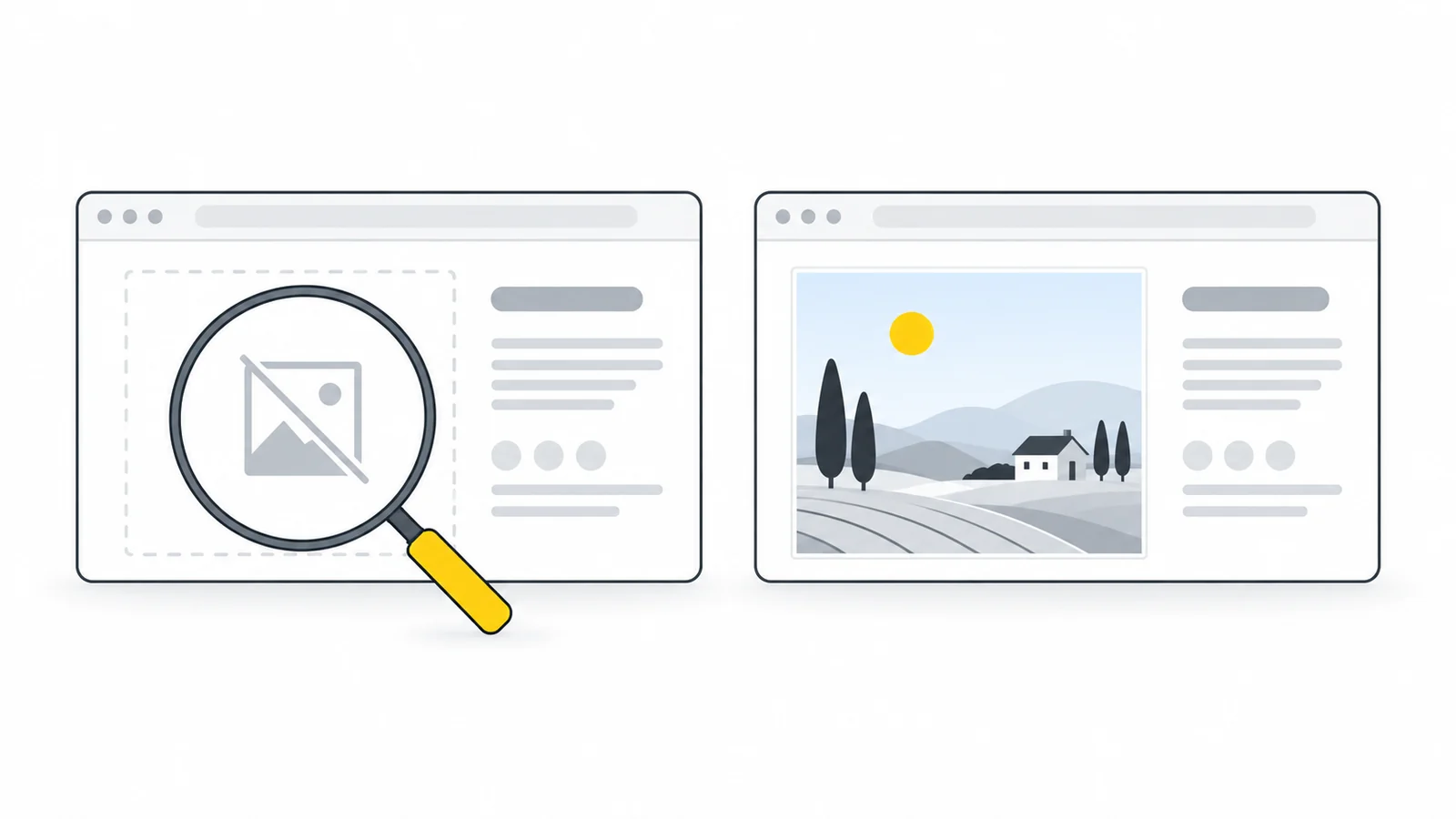
A broken image icon, a blank space and a placeholder that never disappears leave different clues. The file may be missing, the browser may be unable to display it, or the page may be hiding a picture that loaded successfully.
Start with one affected image. The first checks use your website editor and browser. The optional maintainer section covers requests, HTML, CSS and browser security messages.
If the picture appears on your page but is absent from search results, use the Google Images guide. If it eventually appears but takes too long, investigate slow image loading.
1. Start with the published page
Open the public page rather than the editor preview. In the editor, confirm that the image is selected, the change was saved and the page was published. Note which pictures are affected and whether the problem began after an upload, redesign or website move.
| What you notice | Where to start |
|---|---|
| One picture is missing everywhere | Find and test its image address |
| Many images disappeared after a move | Check file locations and delivery access |
| The editor shows it, but visitors cannot see it | Compare the editor with the public page |
| It disappears only on a phone | Check mobile settings and image versions |
| A visible image stays as a placeholder | Check whether its loading behavior has stalled |
| The file opens, but its space on the page is blank | Check visibility and the surrounding layout |
Try the public page in a private window too. A different result is useful evidence, although login state, stored data and extensions can all differ between windows.
2. Find and test the image address
Right-click the missing picture or its broken icon and look for Open image in new tab or Copy image address. A background image or an empty placeholder may not offer these options.
You can also select the image in your editor and open its media details. Copy the file URL, rather than an attachment page or cloud-sharing page. A sharing page may show the picture inside a download interface or require a login.
The public page may use a thumbnail, mobile crop or copy on a separate image delivery service. If you can only find the media-library original, treat it as a starting point. The Network check identifies the version requested by the page.
Open the image address in a private window without signing in, then choose your next step:
- The picture opens: go to the page visibility checks. If those reveal nothing, inspect the page's actual request.
- You get an error, login page or access warning: go to file location and access.
- The problem occurs only on a phone: go to mobile versions and loading, even if the original opens.
- The browser downloads the file: go to the response-header check. Download settings can explain this behavior without establishing whether the picture works inside the page.
A successful new-tab test confirms that the file can be displayed in that context. The page can still request a different version or encounter an embedding restriction.
3. Restore the file or correct its access
If the file is missing or the address is wrong
- Find the intended picture in your media library. Compare its file address with the failing address. Check the domain, folder, filename, extension and letter case. Some servers distinguish
Photo.JPGfromphoto.jpg. - Replace the broken selection in the affected image block or widget. Choose the existing working asset, save and publish. If the original was deleted, upload a trusted replacement first.
- Reopen the public page. Check that it now references a working image. If it still requests a missing thumbnail, follow the generated-size check below.
After a website move, compare the image host as well as the filename. The page may still reference the old domain or upload folder. For manually written paths, use the maintainer checks.
If the original works but a thumbnail is missing
A new upload does not necessarily repair a page that still names the missing version. Give the maintainer the working original URL and the failing thumbnail URL, then ask them to regenerate the missing size and update any image lists that refer to it. The Network panel provides the failing URL and status.
For example: “The original opens, but this page requests a smaller version that returns 404. Please restore that size and check the page's responsive image references.” This identifies the repair without requiring you to know the platform's generation tools.
If access is refused or a login is required
First decide whether the image is meant to be public. If it is, select an asset uploaded through your site's normal public media workflow. A local file:///C:/... address, temporary blob: preview or private cloud-sharing link is not a permanent public image address.
For a 401 or 403 response, send the host the exact failing URL, the page using it and the time of the test. Ask which authentication or delivery rule rejected that request. Expiring links and hotlink protection, which restricts embedding on other websites, are possible causes. Correct the rule or use the provider's supported public image URL; keep private assets under their intended access controls.
4. Check the image's visibility on the page
If the image opens directly, start with its settings in the page editor:
- Check the image and its parent section. Look for visibility controls such as “Hide on mobile” or “Desktop only.” A hidden section also hides the images inside it.
- Check backgrounds separately. A section background needs a visible container. Give an empty section the intended height in the editor, then check its background position and overlay.
- Check transparent artwork against another color. A white logo can blend into a white page while loading correctly. Use the transparency guide if the subject appears invisible.
Save the relevant change and review the public page. If the picture remains missing, use the maintainer checks to distinguish a blocked request from an image hidden by the layout.
5. Check mobile images and stalled placeholders
If the problem occurs only on a phone
Open the editor's mobile view and check whether the image or section is hidden. If there is a separate mobile image setting, confirm that it points to an available asset. Then test the public page on the affected phone.
Websites can also generate several sizes and let the browser choose one. A phone may request a missing small version while a laptop uses a working large one. Ask the maintainer to compare the selected URLs at the working and failing screen sizes, then restore the missing version. Finding the selection is covered in the technical checks.
If a visible image remains a placeholder
Waiting to load a picture farther down the page, or a gallery slide you have not opened, can be intentional. Investigate when the image stays blank after you reach it or open the relevant slide and give it time to load. A failed request and a request that never starts need different fixes.
In a staging copy, test the affected gallery or lazy-loading setting on one page. If the image returns, have the maintainer correct that component before applying a wider change. For the main image visible when the page opens, review whether delayed loading is appropriate. Our lazy-loading guide explains the choices.
6. Compare the editor with what visitors receive
If the picture appears only in the editor, confirm that you published the image change on the correct page. Then compare its media-library address with the public page's request. A private editor preview and a working public upload are different things.
After repairing a stale page or image reference, use your publishing system's documented cache-refresh controls for the affected page or asset. A content delivery network, or CDN, may have its own cache. Clearing your browser data does not refresh the website's shared cache.
If the problem occurs only in one browser profile, compare a test without extensions and review that profile's site permissions. Private browsing is not automatically extension-free in every configuration. Record the failed request before deciding whether a content blocker or the website's delivery method needs attention.
The maintainer section explains how to test without the browser's normal HTTP cache. MDN's caching guide describes browser and shared caches.
7. Change the file when its format or size is the cause
Check the actual file type and the destination's requirements before choosing a converter. Conversion can solve a format mismatch; it cannot restore a missing address or reveal a hidden section.
- The file is HEIC or HEIF, and the destination requires JPG: use HEIC to JPG to make a still-image copy. Check the result and keep the original. An iPhone photo may already be JPEG, so check its format first.
- The platform rejects SVG but accepts PNG: make a PNG copy at suitable pixel dimensions. Review the artwork before uploading it.
- The file will not open locally either: recover a working original or re-export it from the application that created it. Changing the filename extension does not repair damaged data.
- The upload exceeds a stated limit: prepare a copy within that limit, then confirm that uploading completed and the page uses the uploaded file.
The MDN format guide compares browser support and format capabilities. For an SVG that looks different after export, check the SVG guide. For a picture that appears but looks soft, use the blurry-image guide.
Example: a product photo disappears on mobile
In this illustrative scenario, a product photo works on a laptop after a store migration but shows a broken image on a phone. The media-library original opens, so the owner checks the phone's actual image request.
The phone selects /media/blue-mug-640.webp, which returns 404. The laptop uses /media/blue-mug-1280.webp. The migration copied the larger file but omitted the smaller version.
The maintainer regenerates the missing size, checks the other advertised versions and updates stale page references if necessary. The owner reloads the public page on the phone and confirms that the requested file now returns the right picture. The cause was a missing generated file; changing the original's format would not repair that reference.
8. Verify the repair as a visitor
Repeat the test that failed on the same public page, screen size and gallery slide. Confirm that the correct picture appears and remains available after a reload. Test without your administrator login when the image is intended for all visitors.
For a template or delivery change, check another page using the same component and review both desktop and mobile. Keep a short note of the cause and the file or setting you changed.
If someone else needs to finish the repair, send them the page URL, selected image URL, time of failure, browser/device details and the relevant error. Include whether the picture works in the editor, directly in a new tab or at another screen size. Remove private tokens and personal information from material you share publicly.
Optional: technical checks for website maintainers
Use the checks that match the evidence above. They help separate an unavailable file, a failed request and a picture that loaded but is hidden.
Read the image request in Network
- Open the affected public page. In Chrome, choose More tools → Developer tools from the browser menu, then select Network. Other browsers have similar controls.
- Keep recording enabled and reload. Select the Img filter or search for the filename. Reach the image or open its gallery slide if that normally triggers loading.
- Select the request. In Headers, note the Request URL, status and response headers. Use Preview or Response to inspect what came back.
- If there is no match, clear the filters. The URL may have changed, or a script may retrieve the picture through Fetch/XHR.
To compare a fresh browser download, enable Disable cache while developer tools stays open and reload. This bypasses the normal browser HTTP cache, not the CDN's cache. If a service worker handles the site, check its stored responses separately. See the Chrome Network reference.
| Result | Next action |
|---|---|
| 404 or 410 | Correct the referenced path or restore the intended file or generated size. |
| 401 or 403 | Check the rejected request against authentication, link expiry and delivery rules. |
| 429 | Ask the image service to check request limits at the recorded time. |
| 5xx | Give the host the failing URL and time so it can investigate the server or delivery service. |
| Redirect | Follow the final destination and confirm that it serves the intended image. |
| 200, but the response is HTML | Correct the login, error-page or website fallback route serving HTML instead of image data. |
| 200 with the expected picture | Check relevant Console messages and the element's visibility, dimensions and parents. |
| 304 or a memory/disk cache entry | Do not treat this as an error by itself. Compare a fresh response if you suspect stale content. |
| Blocked or failed, with no HTTP status | Read the matching Console error. A connection or browser policy failure can occur without an HTTP response. |
A status narrows the investigation; it does not identify every cause. MDN explains HTTP status codes and normal 304 validation. For host-name or certificate errors, check the image host's DNS and HTTPS setup.
Expect actual image data and a suitable Content-Type, such as image/jpeg or image/webp. A URL ending in .jpg may return HTML, while an image service may legitimately deliver another image format from that same extension.
If opening the address downloads the file
Check Content-Disposition as well as the content type. A response with Content-Disposition: attachment can prompt a download when you open the address directly. That behavior alone does not prove the image fails inside a page: inspect the embedded request too. Use the host's supported image-serving URL when you have copied a download link. See the Content-Disposition reference.
Find the selected responsive image URL
In Chrome or Edge, right-click the affected image and choose Inspect. In Elements, select the actual <img>, rather than its wrapper or <picture>. Open Console and type this read-only expression:
$0.currentSrc$0 refers to the most recently selected element in these developer tools. The result is the selected image address, not a guarantee that loading succeeded. Check it in Network. The Console Utilities reference explains $0, and MDN documents currentSrc.
A browser may choose a file from srcset or a matching <picture> source. A working src does not repair a missing selected candidate. A picture fallback depends on source conditions and support; do not rely on it to recover from a 404 for the chosen file. See responsive image selection and the picture reference.
Resolve HTML and CSS image paths
On https://example.com/services/kitchens/, without a different base URL set by the page, these two sources request different locations:
<img src="images/kitchen.jpg" alt="Finished kitchen with oak cabinets">
<img src="/images/kitchen.jpg" alt="Finished kitchen with oak cabinets">
The first requests /services/kitchens/images/kitchen.jpg; the second requests /images/kitchen.jpg on that host. Choose the address that matches your actual deployment, including any subdirectory prefix. MDN explains relative and absolute paths. In an external CSS file, a relative image URL resolves against the stylesheet's address; see the CSS URL reference.
Inspect the layout and loading implementation
In Elements → Computed, check the image and its parents for display: none, visibility: hidden, zero opacity, collapsed dimensions, clipping or an overlay. A background image does not give an empty container the photograph's height. Fix the responsible rule in the editor or source stylesheet; a temporary developer-tools edit usually disappears on reload. See Chrome's CSS inspection guide and the background-image reference.
If the real URL exists only in data-src, check the script that assigns an image source and any relevant Console error. With native loading="lazy", provide appropriate dimensions and confirm that the image has a place in the layout before it loads. The browser-level lazy-loading guide explains native behavior.
Technical note for website maintainers
For a security block, match the Console message to this image URL and correct the responsible policy or delivery setting. Test the public page after the change. A blanket permission change or disabled browser protection can hide the cause without providing a suitable fix for visitors.
Content Security Policy: check whether the intended image host matches img-src, or default-src when no image-specific directive is supplied. See the CSP image-source reference.
Mixed content: an HTTP image reference on an HTTPS page can be upgraded or blocked, depending on how it is used. Confirm that the image is available over HTTPS and update the reference. See MDN's mixed-content guidance.
CORS and embedding policies: displaying an ordinary cross-origin image and reading its pixels through a canvas have different requirements. Adding crossorigin can make loading fail when the image host does not supply the required CORS response. Check the image CORS documentation and any reported Cross-Origin Resource Policy restriction.
Frequently asked questions
Why can I see the image while visitors cannot?
An editor can show an unpublished or temporary preview, and your signed-in session may have access that visitors lack. Test the public page without that login. If the asset is meant to be public, use the site's public media workflow; otherwise, ask the maintainer to check its authenticated display.
Why does the image open in a new tab but fail inside the page?
Compare the exact addresses first: the page may request another size. If they match, check the embedded request for an access or browser policy error. A successful image request then points you toward the page's visibility and layout settings.
Does a 200 response prove the image is working?
No. Check what the response contains. A login page returned with status 200 is not an image. If the response contains the right picture, continue with relevant Console messages and its display on the page. The response code alone cannot confirm a visible result.
Will smaller dimensions or compression fix a broken image?
They help when an upload exceeds a stated limit or an oversized image transfers too slowly. A wrong path, missing thumbnail or hidden section needs a different repair. Use the upload error or image request to establish which problem you have before changing the file.
Should I rename the file or change its extension?
Rename to resolve a specific path or naming problem, then update the references that use the old name. Renaming .heic to .jpg does not convert the image. Use a converter when the actual format is unsupported, and keep the original.
Will alt text, robots.txt or Search Console make the picture appear?
Alt text provides a description when the image cannot be seen; it does not retrieve the file. Robots instructions and Search Console concern crawling and search visibility. For a picture missing from a visitor's page, complete the file, request and layout checks first.
Find the failed stage and fix that first
Choose the path that matches your image, make a targeted repair and check the result on the public page.
Test the image addressVerify the repair → ChatGPT
 Grok
 Google
 Perplexity
 Claude