Image sharing
What Happens to Your Photos in an Online Image Tool?
Understand browser and server image processing, local storage and uploads. Learn how to inspect network activity and what happens to images in Pixilo.
Two image tools can have the same file picker and download button while handling photos differently. One converts the picture on your device; the other sends it to a server. The interface alone does not tell you which happens.
You do not need developer tools to understand the main questions. Start with where the image goes, who can access it and how long copies remain. The optional network check below is for readers who want to investigate further.
What choosing a file lets a website do
A normal file picker gives the page access to the files you select, not general access to every folder on your device. The browser's File API lets the page read those files and properties such as their name, size and type.
With that access, the page can create a preview, edit the pixels or transmit the contents. It may start immediately after selection. A separate Upload button is not required, and a drop zone labelled “Upload” does not establish that transmission occurs. Check the feature's actual handling before selecting sensitive material.
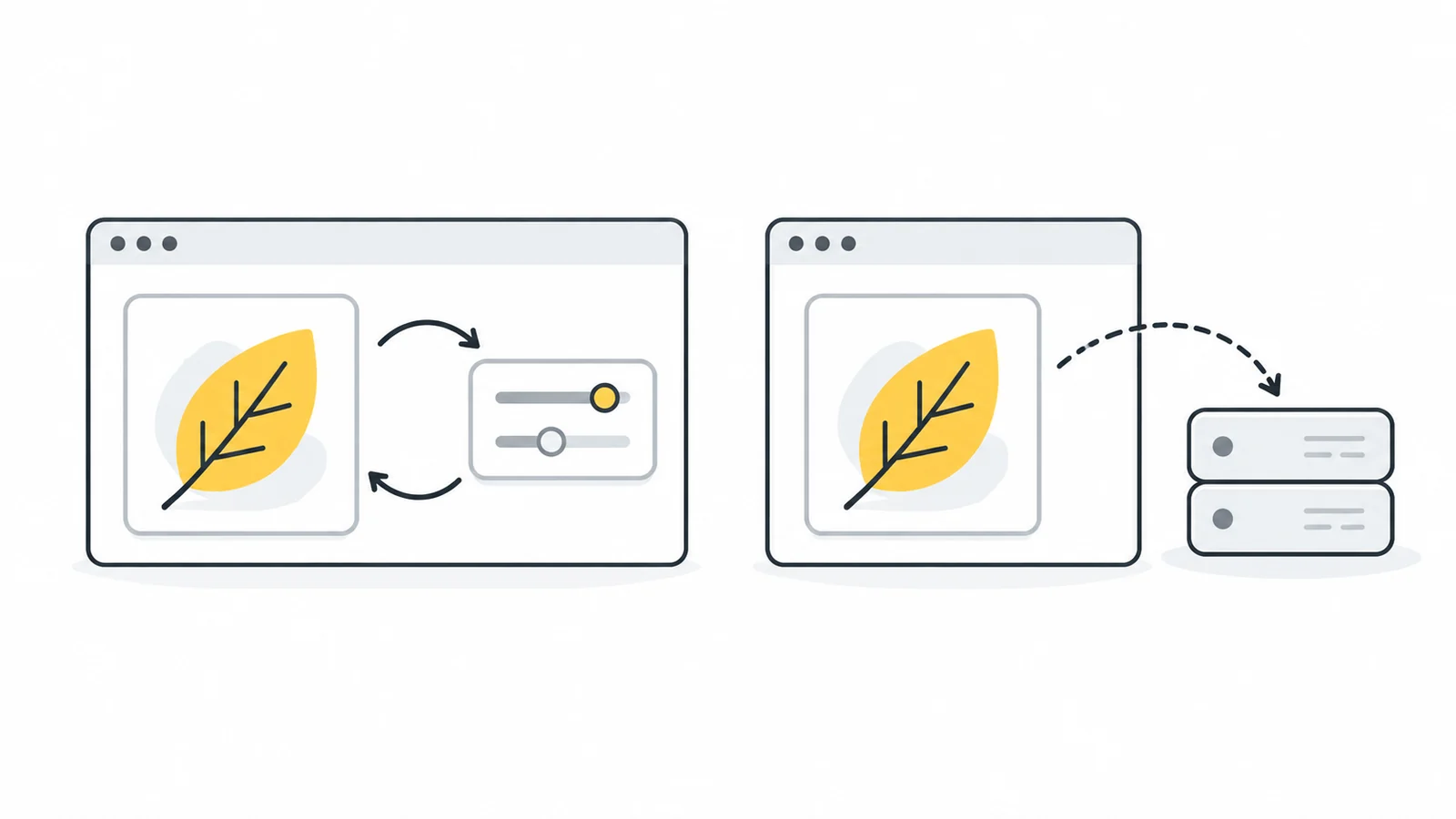
Where the image processing happens
In the browser
The website delivers the code for the tool, and your browser runs it on your device. It reads the selected photo, performs the operation and creates the output. For example, it can draw the photo at smaller dimensions and save those pixels as a new file.
An entirely local operation does not need to send the image to a conversion server. It does need enough memory and processing power on your device. A large image can take much more memory to open than its compressed file size suggests.
On a server
The tool sends the relevant image data to the provider's infrastructure, where the operation runs. The service returns the result or supplies a download link. This can support specialised processing and reduce work on your device.
Read who receives the source and result, who can access them and how retention works. A server-based tool can be appropriate when its capabilities and file-handling terms fit your task. An account-free interface does not remove those questions.
Some tools combine both
A service might crop locally but send a photo elsewhere for background removal. It might transmit extracted text or a smaller preview instead of the complete original. Check the operation you intend to use, rather than relying on one general claim about the whole site.
| Browser processing | Server processing |
|---|---|
| Where? The operation runs on the device using the browser. | Where? The operation runs on the provider's or processor's systems. |
| What is sent? A local operation does not require an image upload. Check whether the feature sends other image information. | What is sent? The server needs the image data used for the operation. |
| What remains? Working data, browser storage and downloaded copies may remain on the device. | What remains? Ask about uploaded sources, results, shared links and retained copies. |
Make a practical choice before selecting the photo
- Find the explanation for that feature. Look for a clear statement about local processing or uploading, rather than relying on “private” or “secure” alone.
- Check what is stored. For uploads, look for a retention period and any sharing-link access rules. For local processing, check whether the tool saves work in the browser.
- Use a harmless sample if the workflow is unfamiliar. Explore selection, processing, downloading and continuing to another tool without exposing a real document.
- Choose a workflow suitable for the material. For work files, follow your organisation's approved tools. If a provider's explanation leaves an important question unanswered, ask the provider or use a service with clearer information.
You do not have to prove the behaviour of an unfamiliar service yourself. A technical test can add evidence, but it is reasonable to choose a tool with a clear explanation and a workflow you can use appropriately.
What happens to a photo in Pixilo?
Pixilo's current image tools process selected files in the browser and create previews and downloads on your device. The processing code does not upload those files to a Pixilo conversion server. Following an external link opens a different service with its own handling.
Continuing to another tool uses browser storage
When you choose another tool from a result's Edit menu, Pixilo temporarily stores the prepared image, its filename and transfer information in IndexedDB, a local browser database. The destination reads and removes that record, then continues working on the image locally. The destination page's address contains a random reference for the lookup, not the image contents.
The transfer is valid for 15 minutes. There is no background timer that deletes a record when those minutes pass. If the destination never reads it, it can remain stored. Starting another tool transfer also removes expired transfer records; clearing the site's browser data removes pending records directly. Closing a tab does not reliably clear that database.
Even after the next tool reads and removes the transfer record, the active destination page can still hold the working image. Downloaded files are separate copies in your device's folders. These distinctions are particularly relevant on a shared computer.
What we checked on 17 October 2026
We inspected the processing and transfer code and tested the local static build in Microsoft Edge 155.0.4283.45. With a non-sensitive 120 × 80 PNG, we converted to JPG, used Edit to open Resize Image, resized to 60 × 40 and downloaded the result. The recorded HTTP requests were GET requests with no request-body data; no WebSocket connection was observed. After the next tool read the image, the pending transfer database contained zero records.
External provider requests were blocked in this test. It checks the local processing workflow described here, not a live-site security audit, every tool or a future version.
Why local processing still involves website requests
The browser requests pages, scripts, fonts and other resources to run the site. It may fetch an image-processing library when you first need it. A partner banner can also request an image from another provider. These are different from sending the selected photo.
Hosts and external providers can receive technical information such as your IP address and requested URL. That matters when assessing the site, even if the conversion itself is local. Pixilo's privacy policy describes its hosting requests, partner content and local storage.
Understand the copies that remain
For a server-based tool, “automatically deleted” should have a specific meaning. Check whether the period covers the original, the result and any other retained copies. Ask whether a download link is restricted to you or accessible to anyone who has it, and whether you can revoke it.
For local tools, distinguish an image held by the active page from an image saved in a browser database. IndexedDB can store files and structured data locally. Local processing therefore does not necessarily mean that closing the page removes everything.
Remove Pixilo's pending transfers in desktop Chrome
- Finish your work, download any result you want to keep and close active Pixilo editing tabs.
- Open Chrome's Settings → Privacy and security → Third-party cookies → See all site data and permissions.
- Search for
pixilo.dev, delete that site's stored data and confirm. If testing a local preview, select that preview's site entry instead.
Menu names can vary by Chrome version or language; Google's site-data instructions show the current route. This also clears saved site preferences, including your theme and cookie choice. It does not delete files in Downloads or the originals in your photo library. Browser site-data removal is not a guarantee of secure erasure from the device.
Review the image you intend to share
Processing location and the information in the result are separate questions. Before sharing, inspect visible details such as account names as well as embedded metadata such as GPS coordinates. Our metadata guide and screenshot guide explain those checks.
Do not assume a compression result has removed metadata. A tool may return the original unchanged when it already fits the limit. Inspect the saved output when removal matters.
Optional: inspect the network activity yourself
This section uses a desktop browser's developer tools to show requests: messages sent between the page and other systems. It is an investigation aid, not a requirement for using an image tool. Use a non-sensitive sample.
- Open the inspector before choosing a file. In Chrome on Windows or Linux, press Ctrl + Shift + I; on Mac, press Command + Option + I. Select Network. Check that recording is on, choose All and enable Preserve log if you will navigate to another tool.
- Reload the page. This records its initial resources. Leave the panel open for the whole test.
- Select the sample, process it and download the result. Include any tool-to-tool transfer you want to check. Watch selection time too; a service can upload before you press a processing button.
- Inspect requests that could carry data. Click a request and examine its destination, method and Payload tab. The payload is the data sent with the request. Look for file content, an encoded image or extracted information; a filename may not be shown.
- Check existing connections if present. A WebSocket is a connection that can send multiple messages without adding a new request row for each one. Select it and examine outgoing Messages. Not every page uses one.
Chrome's network tutorial explains the panel. The network reference covers payloads and WebSocket messages. Do not use the Size column alone as proof that a photo was or was not uploaded.
| What you see | How to interpret it |
|---|---|
| GET /styles.css or /image-tools.js | Resource downloads observed in our local test. They supply styling and tool code, not the selected photo. |
| GET /resize-image after Edit | Navigation observed in our test. The image was passed through the local database and its pending record was consumed. |
| A blob: download address | Can refer to a file created in the browser. In our test, the result download used this local mechanism. |
| POST /convert with image data | An illustrative server-upload example, not a Pixilo test observation. The request body would show the image data being sent. |
Know the limits of the check
Readable image data leaving the page confirms transmission in that test. No obvious upload gives evidence about the tested workflow, not a guarantee about every feature or future version. Encoded or binary data can be difficult to interpret. If you cannot resolve an important uncertainty, use the provider's explanation or a different approved workflow.
An already loaded tool working offline is another clue that the operation can run locally. Failure offline may simply mean it still needs a processing library; success does not rule out queued requests after reconnecting. Judge the full workflow rather than relying on that test alone.
Frequently asked questions
Does HTTPS prevent the receiving service from reading an upload?
No. HTTPS protects the connection in transit. An ordinary server-side converter still needs access to the data it processes. Retention and access controls are separate questions.
Is a blob address a public image link?
No. A blob: URL refers to a browser-managed file or data object, as described in MDN's object URL reference. Its presence alone does not tell you whether another copy was sent elsewhere.
Does closing the tab remove my downloads?
No. Downloads are files on your device and follow its storage or backup settings. Close the editing page when finished, and manage downloaded copies separately.
Try the workflow with a sample image
Use a non-sensitive photo to explore local processing, inspect the result and understand the steps before choosing a tool for a private file.
Open the image compressorRead Pixilo's privacy policy → ChatGPT
 Grok
 Google
 Perplexity
 Claude